
Book record
The book record gathers everything the library knows about a title: the bibliographic data, the classification and, above all, its copies with the status of each. Use it to find out where a copy is and who has borrowed it and, with the cataloguing permission, to correct the data, add copies, change their status and print labels.
The record opens from a book in the Catalogue, from the saving of a New book, from the print lists, from the Stocktaking and from the circulation desk (button Open the copy). The accounts "Loan management", "Cataloguing", "Reports" and "Administration" can read it. Editing it, adding copies and printing labels belong to "Cataloguing" and "Administration"; the record of the other accounts has no edit buttons.
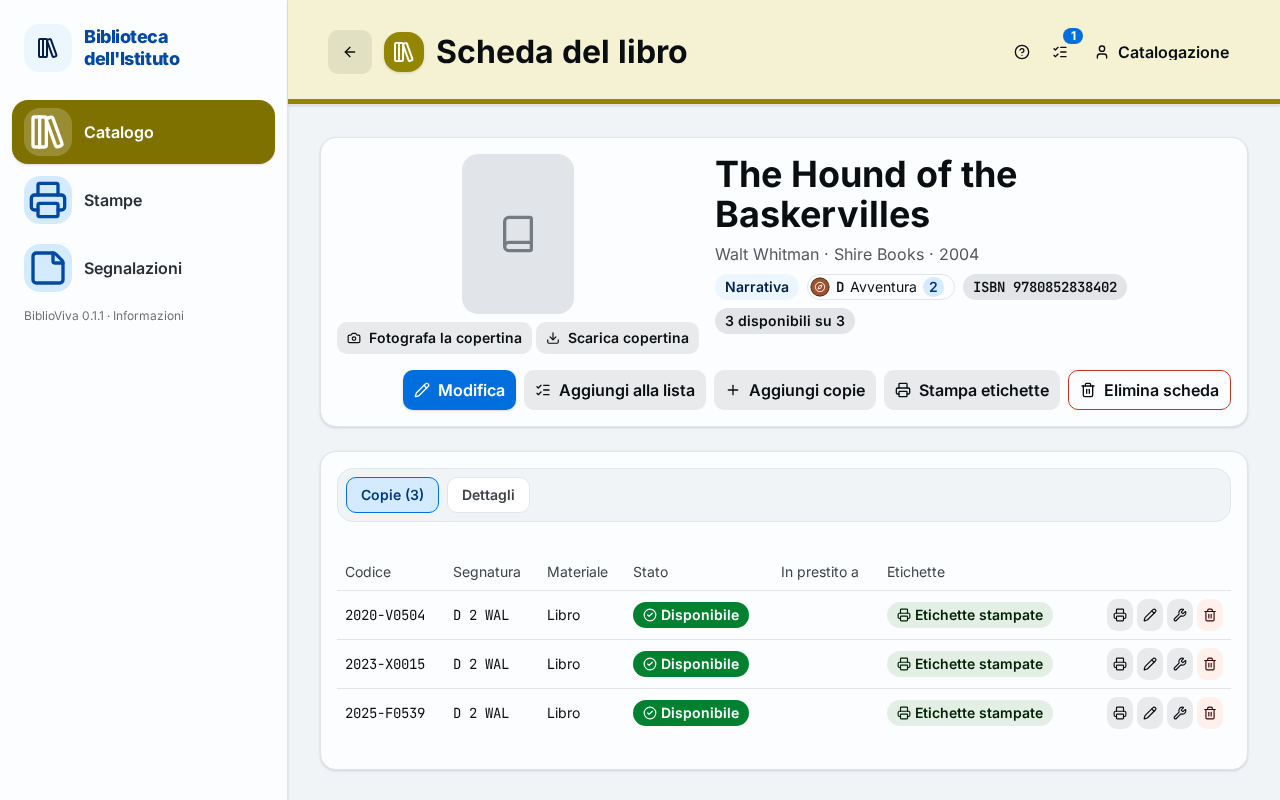
In the figure:
- The header with title, author and cover: Record header.
- The marks (kind, classification, series, ISBN, copies): Record header.
- The action buttons: Record actions.
- The tabs Copies, Details and Loan history: Copies, Details, Loan history.
- The list of copies with status and labels: Copies.
- The action icons of each copy: Actions on a copy.
Record header
At the top are the title and, below it, author, publisher and year separated by a dot. On the left is the cover, if the library uses covers; the administrator can switch covers off and, in that case, the cover does not appear and nothing is searched.
Under the title are the marks:
- the kind, Fiction or Non-fiction, and the classification with its name (with the reading level, if there is one);
- if the book has no classification yet, the mark To classify (with the explanation "The copies are not lent until the book is classified.") and, with the cataloguing permission, the Classify button, which opens the page Classify the book;
- the series, with the number, as a button: it opens the Catalogue with all the books of the series, in order;
- the ISBN;
- the copies, in the form "N available of M". Withdrawn copies are not counted in the total.
Cover
With the cataloguing permission, under the cover are the buttons to change it (the procedure is in Add the cover):
- Photograph the cover (Change cover if the cover already exists) opens the panel to take the photo with the camera or to Upload a file. After the shot the cover is straightened: drag the four corners onto the edges, press Straighten and confirm with Use this cover; Retake repeats the shot and Cancel exits. The camera is optional and works only with a secure connection (https), that is with Tailscale; uploading a file works everywhere.
- Download cover looks for the cover online from the ISBN. The button appears only if the book has an ISBN. If it does not find it, the page warns ("No cover found online for this ISBN: it can be photographed.").
- Remove cover asks for confirmation ("Remove the cover?") and deletes the image from the server.
Record actions
The buttons at the top right are visible only with the cataloguing permission. The main action is Edit; when the row is too narrow, the other actions move into the More actions menu.
- Edit opens the form Edit record.
- Add to the list puts all the copies of the book in a print list (see Printing). It is off if the book has no copies.
- Add copies opens the window Adding copies.
- Print labels opens the window Print labels for all the copies. It is off if the book has no copies.
- Delete record, in red, deletes the record: see Deleting the record.
Copies
The Copies tab, with the number of copies in brackets, lists the physical copies of the book, one row per copy. If the book has no copies, the page writes "No copy yet: add one to lend it."
The columns are:
- Barcode: the barcode of the copy, printed on the internal label;
- Call number: see Call number;
- Material: book, DVD or other;
- Level: the reading level of the copy; it appears only if the library records it on the copies and not on the title;
- Status: see Copy statuses;
- On loan to: see Who has the copy;
- Labels: see Label status;
- the action icons, with the cataloguing permission: see Actions on a copy.
Call number
The call number is the code written on the spine, which says where the copy goes back: for fiction the genre followed by the first letters of the author (for example B DEL), for non-fiction the number of the subject followed by the letters of the author (for example 590 ROS). The exact form depends on the library's configuration. In the form of a copy the call number is proposed from the classification and can be changed by hand.
Copy statuses
Each copy has a status, shown with a colour, an icon and the text. The statuses are the following.
- Available: the copy is on the shelf and can be lent.
- On loan: the copy is out, lent to a patron. The On loan to column shows to whom and the due date.
- Reference only: the copy is available but marked "Reference only (not lent)": it stays in the library and does not go home. The circulation desk refuses it.
- Lost: the copy cannot be found. It cannot be lent or printed. If the copy turns up and is returned, it becomes available again.
- Damaged: the copy is in bad condition but is still lent.
- In repair: the copy is off the shelf to be repaired and is not lent.
- Withdrawn: the copy has been removed from the collection. It is not lent and does not enter the lists or the labels.
Who has the copy
For a copy on loan the On loan to column shows the name of the patron and "due" followed by the date. The name is visible only with the accounts "Loan management" and "Administration"; the other accounts read On loan and the due date. The name is a link to the Patron record only for the accounts that can open patron records (normally "Administration").
Label status
The last column says how far the printing of the two labels of the copy has got (the spine band and the label with the barcode):
- Labels printed: both have been printed;
- One label missing: only one has been printed;
- Labels to print: none has been printed.
Actions on a copy
At the right of each row, only with the cataloguing permission, are four icons; the name appears when the mouse passes over it and contains the code of the copy:
- "Labels of the copy": prints the labels of that copy alone (Print labels);
- "Edit copy": Editing a copy;
- "Status of the copy": Changing the status of a copy;
- "Delete copy", in red: Deleting a copy.
Adding copies
The Add copies window creates one or more new copies of the book. It opens from Add copies in the record actions. The procedure is in Add a copy to a book already in the catalogue. The fields are:
- Number of copies, from 1 to 100;
- Material, the type of material;
- Call number: left empty, it uses the one proposed from the classification (which appears in grey);
- Level of the copy, if the library records it on the copies;
- Volume / number, Acquisition date and Notes on the copy;
- Reference only (not lent), for the copies that must not go out.
The Add button creates the copies and a message confirms "N copies added" with the new codes. The barcodes of the copies are assigned by BiblioViva. After the addition the labels show Labels to print.
Editing a copy
The window "Edit copy", titled with the code of the copy, changes Material, Call number, Level of the copy, Volume / number, Acquisition date, Notes on the copy and Reference only (not lent). The Save button confirms ("Copy updated"); Cancel exits.
Changing the status of a copy
The window "Status of the copy", with the code of the copy in the title, is used to mark a copy as lost, damaged, in repair or withdrawn, or to make it available again. The procedure is in Withdraw a lost or damaged copy.
- In New status choose Available, Lost, Damaged, In repair or Withdrawn.
- In Reason (optional, recorded) write why, in a few words. The reason stays in the log of the copy.
- Press Change status. A message confirms "Status updated".
If the copy is on loan, the change to Withdrawn is refused with the message "The copy is on loan: record the return first." The copy must first be returned on the Returns page. The change to Lost, on the other hand, is accepted and closes the loan.
Deleting a copy
The bin icon asks for confirmation with "Delete copy N?" and the note: "Only for cataloguing mistakes: a copy that was ever lent cannot be deleted, withdraw it instead." The Delete copy button deletes the copy. If the copy has recorded loans, the page answers "The copy has recorded loans: withdraw it instead of deleting it." and the copy stays: it must be withdrawn from the window described in Changing the status of a copy.
Details
The Details tab shows the data that is not in the header, only what is present: Subtitle, Original title, Statement of responsibility (as on the title page), Place, Physical description, ISSN, EAN (not an ISBN), Dewey (from SBN), Notes and Subjects. At the bottom a line gives the origin of the record ("Source: …", for example the service it was downloaded from or "manual"), the creation date and that of the last edit.
Loan history
The Loan history tab appears for the accounts that have the circulation desk ("Loan management" and "Administration"). It lists all the loans of the copies of the book, the most recent first. The columns are Lent on, Patron, Class, Copy, Due date, Returned on, Outcome and Renewals. Above the list a line says "N loans". If no copy has ever been lent, the page writes "No copy of this book has ever been lent."
The outcome is Open, Overdue, Returned, Returned late or Lost. A removed patron appears with the name made anonymous. A click on the row opens the patron record, but only for the accounts that can open patron records.
Print labels
The Print labels window opens from the Print labels button of the record, from the printer icon of a copy and from the catalogue, for the selected books. It prepares the print page of the adhesive labels and, after printing, records which copies have been printed. The procedure is in Print book labels. The parts of the window are:
- Label kind: Pair (the spine band above and the label with the barcode below, one pair per book: this is the normal choice), Barcode only (for reprints) or Spine band only (for example after a reclassification);
- Label sheet: the adhesive sheet loaded in the printer;
- First free position: the label of the sheet to start from, from 1 to the maximum number of the sheet, to skip those already used;
- the summary line: "N copies", with the sheets needed and the labels per sheet;
- Open the print page: opens the print page in a new browser tab; the window reminds "Once the labels are printed, mark them as printed.";
- Mark as printed: it appears after the print page has been opened; a message confirms "N copies marked as printed" and the labels move to the status Labels printed.
For books not yet classified the window warns that only the label with the barcode is printed and that the spine band will come after the classification. Close exits without marking anything.
Deleting the record
Delete record opens the confirmation "Delete the record “title”?" with the note "The record leaves the catalogue. Possible only without copies." If the book still has copies, the page answers "The record still has N copies: withdraw or delete them first." and deletes nothing. On confirmation the page returns to the Catalogue with the message "Record deleted".
Edit record
The Edit record page corrects the data of the book; the procedure is in Correct a book record. It opens from the Edit button of the record and shows, under the title, the title of the book. At the bottom are Cancel, which returns to the record without changing anything, and Save changes. An invalid field is flagged under the field, with red text; the fields the form complains about are listed at the top under "Check the highlighted fields".
Record section
The fields of the Record section:
- Title (mandatory);
- Subtitle;
- Original title, to be filled in only if the book is a translation: the title of the work in the original language;
- Author (mandatory), in the form Surname, Name. Under the field, the buttons of the special values put in the author when there is no personal author (for example Anonimo or AA. VV.);
- Statement of responsibility (as on the title page), for illustrators, translators and the like;
- Series and Number in the series: the series is typed by hand, with suggestions from the series already in the catalogue; the number is the number of the volume (for example Harry Potter and 3).
Publication section
The fields of the Publication section:
- Publisher (mandatory), with the button of the value "Unknown publisher" (normally
s.n.); - Place, with the button of the value "Unknown place" (normally
s.l.); - Year, four digits;
- ISBN;
- EAN (not an ISBN), for the materials that have an EAN without being books (a DVD);
- Physical description, on a single line (pages, illustrations, format).
Classification section
The Classification section chooses the kind and the subject of the book.
- At the question What kind of book is it? choose Fiction, Non-fiction or Classify later. With Classify later the book goes into the list To classify: its copies are not lent and the spine band is not printed until it is classified.
- For fiction, choose the genre among the pictures of Pick the genre and, if the library uses it, the Reading level.
- For non-fiction, choose the subject among the pictures of Pick the subject. A main subject has sub-subjects: opening it shows the "Subjects of …" and the right one is chosen, or the button "Use … in general"; Back to the main subjects returns to the list.
More section
The More section is closed on opening, unless it already contains data. It contains Dewey (from SBN), ISSN, Subjects (one per line, or separated by commas) and Notes.
Single copy section
If the book has a single copy, at the bottom of the form appears the section titled with the code of the copy ("Copy N"): "The record has a single copy: its data is edited here and saved together with the record." The fields are those of Editing a copy.
Form messages
The form rejects invalid data with one of the following messages.
Invalid ISBN
"Invalid ISBN (check the digits)": the ISBN has a wrong check digit. Check the digits again on the back of the book.
A record with this ISBN already exists
"A record with this ISBN already exists": the book is already in the catalogue. To have another copy, use Add copies on the existing record.
The genre or the subject is required
"Pick the genre" for fiction, "Pick the subject" for non-fiction. If the book cannot be classified yet, choose Classify later. The other classification messages ("Non-fiction has no genre", "Fiction has no subject", "Reading level not in the configuration") say that the choice is not consistent with the kind.
Implausible year
"Implausible year": the year written is outside the accepted range. Write the year with four digits.
Invalid ISSN or EAN
"Invalid ISSN" and "Invalid EAN": the digits do not pass the check.
Invalid date
"Invalid date (YYYY-MM-DD)": the acquisition date is written in the form year-month-day, or chosen from the calendar.
Material not in the configuration
"Material not in the configuration": the chosen material is not among those active in the library. To add one, the administrator is needed.