
Enrol a teacher
This page explains how to add to BiblioViva a teacher who is not in it yet, with the card number and, if wanted, the photo. It is for whoever manages the patrons. To enter all the teachers at once, use the import described in Import the teachers.
- Time: about 3 minutes, about 5 with the photo.
- Account: "Cards and photos" (also "Administration").
- Requirements: the teacher's surname and first name. Optional: the student id and the email address.
- For the photo: a file with the photo or, with Tailscale only, the computer's camera. If the administrator has switched off the photos, this part is skipped.
A teacher has no class: a teacher belongs to a teachers group. Normally there is only one group, the one BiblioViva proposes, and there is nothing to choose.
Procedure
Fill in the data
-
Log in to BiblioViva with the "Cards and photos" account.
-
Open Patrons.
-
Press New patron. The New patron page opens.
-
In Type choose Teacher. The Class field is disabled and the next field changes its name to Teachers group.
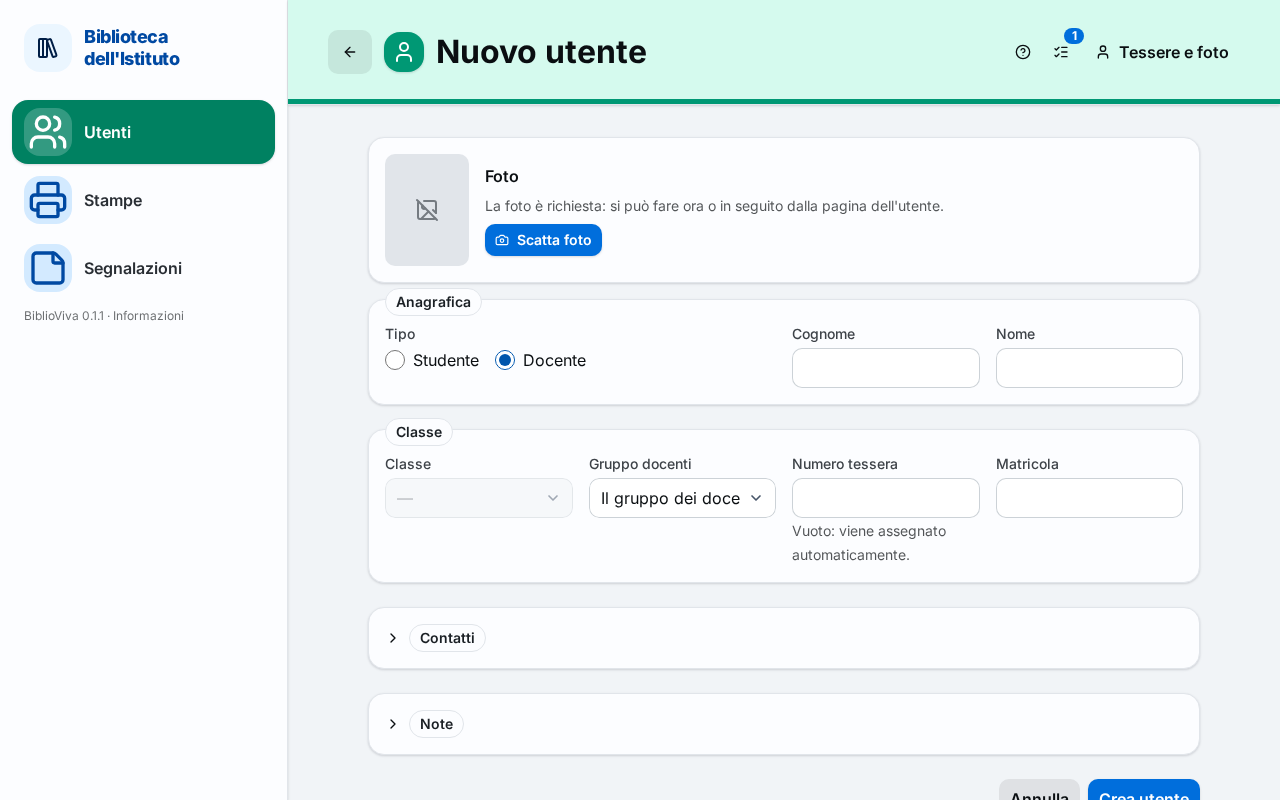
Figure 1. The New patron page with the Teacher type and the Teachers group field -
Write the surname in the Surname field.
-
Write the first name in the First name field.
-
In Teachers group leave the entry "The teachers group", unless the school has more groups: in that case choose the right one.
-
Leave the Card number field empty: BiblioViva assigns the number by itself.
-
If needed, write the code of the electronic register in the Student id field.
-
If needed, open the Contacts part and write the address in the Email field.
Add the photo (optional)
The photo is added with the Photo tab, above the form, with the same steps as for a student: see Enrol a student. The photo can also be taken later, from the patron's record: see Take the patrons' photos.
Save and print the card
- Press Create patron. The Patron record opens.
- Open the Card tab.
- Press Print card and follow the window that opens. Cutting and folding are explained in Print the cards of a class.
- After printing press Mark as printed.
Result
The teacher appears in Patrons, by filtering Type on Teacher or by searching the first letters of the surname. Their record shows the type "Teacher" in place of the class and the card number. On the printed card, normally, "Teacher" appears in place of the class.
Possible problems
- "Student id already assigned to another patron.": the teacher is probably already entered. Look for them in Patrons.
- "The card number is or looks like a copy barcode: choose another number.": empty the Card number field.
- "The camera only works over a secure connection (https)…": without Tailscale use Upload file.
- The Photo tab does not appear: the administrator has switched off the photos.