
Stocktaking
Stocktaking checks that the copies of the catalogue are really on the shelves. A campaign is opened, the copies are read shelf by shelf with the barcode scanner, and at closing the copies never read are marked as lost.
The page opens from the Stocktaking tab of the Catalogue and from the Stocktaking action of the dashboard (Continue, while a campaign is in progress). The accounts "Cataloguing" and "Administration" use it. The procedure is in Do the stocktaking.
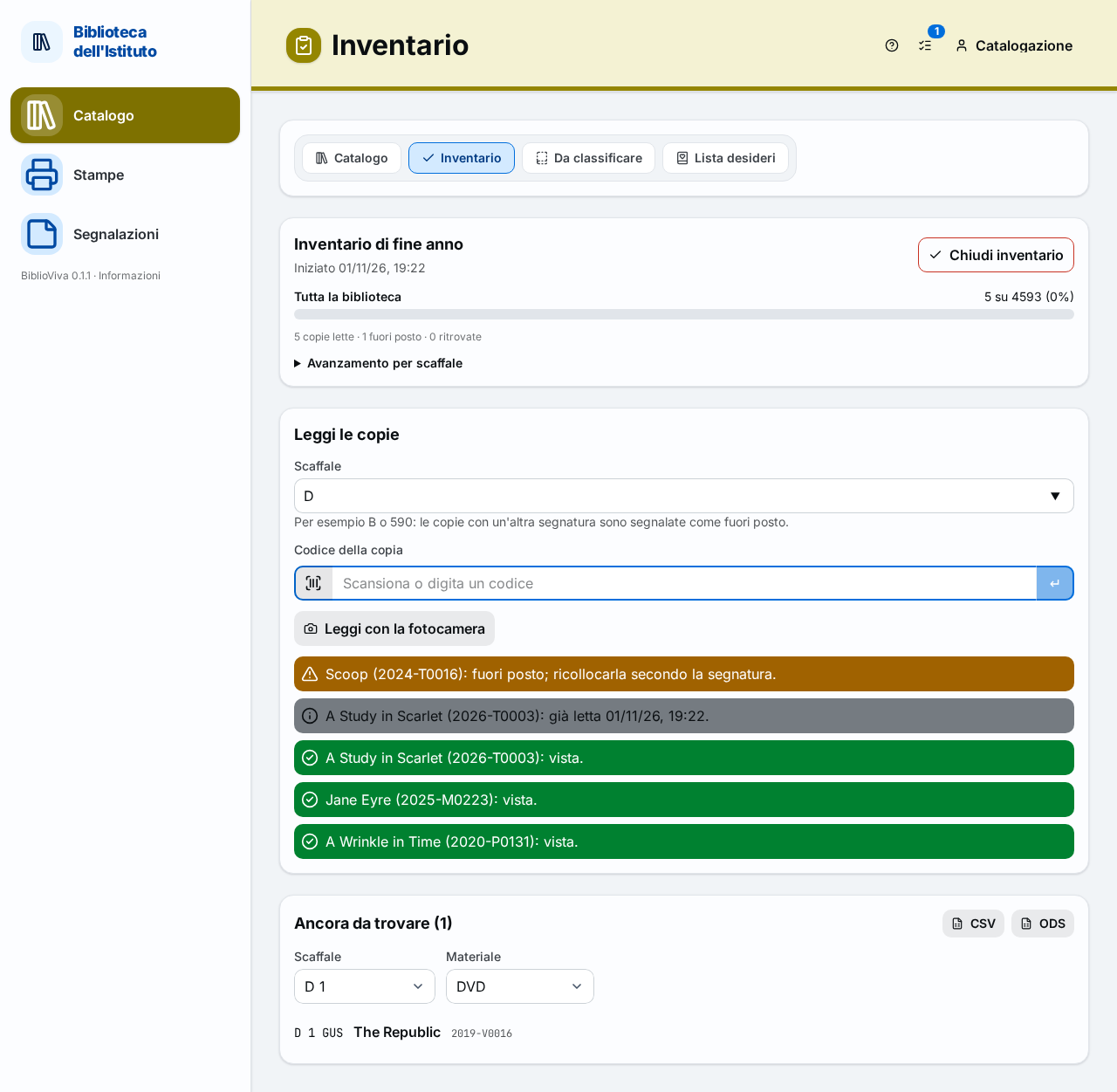
In the figure:
- The name of the campaign and the Close stocktaking button: Campaign in progress.
- The progress: Progress.
- The Shelf field: Scanning the copies.
- The Copy barcode field: Scanning the copies.
- The latest outcomes: Scan outcomes.
- The list "Still missing (N)": Copies still to be found.
New campaign
When there is no stocktaking in progress the page writes No stocktaking in progress and reminds: "Start a campaign, then scan the copies shelf by shelf: at the end the ones never seen are marked as lost."
- In the Campaign name field write a name, or leave the proposed one (Stocktaking followed by today's date).
- Press New campaign.
There can be only one campaign at a time: if one is already open, the page answers "A stocktaking is already in progress."
Campaign in progress
The box at the top gives the name of the campaign, "Started" with the date and the time, and the Close stocktaking button. The campaign lasts as long as needed: the reading can be interrupted and resumed on the following days; the dashboard offers the Continue button.
Progress
A bar shows the copies seen out of those expected for the whole library ("N of M", with the percentage) and a line sums up: "N copies scanned · N on the wrong shelf · N found again". Opening Progress by shelf shows the same bar for each shelf, that is for each group of equal call numbers; the copies without a call number are under No call number.
Scanning the copies
The Scan the copies box is the part used during the work.
- In the Shelf field write the code of the shelf being worked on, for example
Bor590. The field suggests the codes already known. The copies read whose call number does not match the shelf are flagged as out of place. The field can stay empty. - Read with the barcode scanner the code of the copy (the label on the book). The Copy barcode field already has the cursor and empties after each reading.
- Read the code of the next copy. The outcome appears immediately below (see Scan outcomes).
- When moving to another shelf, change the content of Shelf and go on.
The Scan with the camera button is optional: it replaces the scanner with the camera of the device, which stays on from one reading to the next; it works only with a secure connection (https), that is with Tailscale. During the reading the title shows "Shelf" and the code; Done closes the camera. The camera counts only the codes that can belong to a copy.
Scan outcomes
The latest five outcomes stay visible, each with a colour, an icon and the text.
Seen
Green: "title (code): seen." The copy is in its place and has been counted.
Already scanned
Grey: "title (code): already scanned" followed by the date of the first reading. A second reading changes nothing.
On the wrong shelf
Orange: "title (code): on the wrong shelf; put it back as its call number says." The copy is on the wrong shelf; it must be put back where the call number says.
Found again
Green: "title (code): it was lost and has been found; it is available again." The copy marked as lost has come back and circulates again.
On loan
In the main colour of the theme: "title (code): on loan; register the return at the desk." A copy on loan found in the library is a loan to be registered as returned on the Returns page.
Withdrawn
Grey: "title (code): withdrawn copy, to be taken off the shelf."
Unknown code
Red: "code: no copy has this barcode." The code belongs to no copy of the catalogue; check the label.
Copies still to be found
The box "Still missing (N)" lists the copies expected and not yet read, with the call number, the title (a link to the Book record) and the code. The list is narrowed with Shelf (All shelves or one shelf) and Material (All materials or one type). When everything has been read, the page writes "Every expected copy has been seen."
The list shows the first copies; if there are more, a line says "and N more: export the list to see them all". The CSV and ODS buttons download the complete list with the chosen filters: it is the list to take to the shelves for the final search.
Closing the stocktaking
When the reading is finished, Close stocktaking asks for confirmation ("Close the stocktaking?") and warns how many copies will be marked as lost: "The N copies never seen will be marked as lost. The campaign can be reopened within a week to undo it." The Close stocktaking button of the window confirms; Cancel leaves the campaign as it is.
After closing the page shows Stocktaking closed and the summary: "N of M copies seen, N marked as lost, N found again, N on loan, N on the wrong shelf."
Past campaigns
At the bottom, under Past campaigns, the closed campaigns are listed, each with its summary. For the campaigns closed less than a week ago the Reopen button appears, which undoes the closing: the copies that the closing had marked as lost return as they were and the campaign resumes. A campaign can be reopened only if no other is in progress; after a week the page answers "It can be reopened only within a week of closing."
Other messages
"This stocktaking is closed.", "Stocktaking not found." and "Give the campaign a name." appear when acting on a campaign that is already closed, has disappeared, or when trying to start one without a name.