
Catalogue
The catalogue is the list of all the books in the library, with the available copies of each. Use it to search for a book by title, author, code or ISBN, to open its record and, with the cataloguing permission, to print labels and correct several copies at once. The procedure for finding a book is in Find a book.
The catalogue opens from the Catalogue item of the menu (on a phone, in the bottom bar, among the main items). The accounts "Loan management", "Cataloguing", "Reports" and "Administration" can read it; the account "Cards and photos" does not see it. Searching, filtering and exporting are allowed to all these accounts; printing labels, adding books and changing copies belong to "Cataloguing" and "Administration".
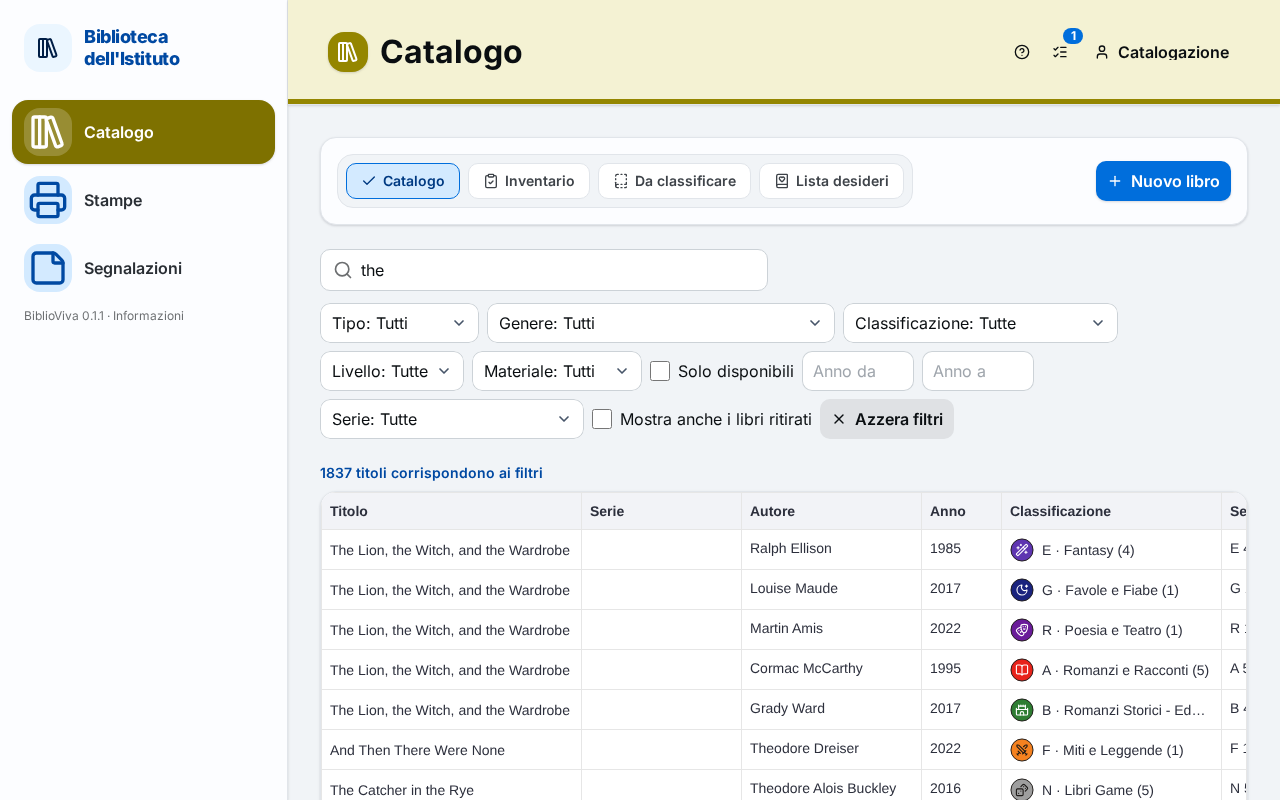
In the figure:
- The pages of the catalogue (tabs at the top): Title bar.
- The search field: Search.
- The filters: Filters.
- The number of results: Results.
- The list of books: List of books.
- The Export menu: Export.
Title bar
Under the title Catalogue are the pages of the area, as tabs: Catalogue, Stocktaking, To classify and, for those who have the catalogue but not the circulation desk, Wishlist. The tabs appear only to the accounts with the cataloguing permission ("Cataloguing" and "Administration"): the other accounts see the Catalogue page alone.
The New book button (only "Cataloguing" and "Administration") opens the New book page.
Search
On opening, the catalogue shows nothing: the page asks for a search ("Search the catalogue"). The list appears when at least three characters are typed in the Search by title, author or ISBN… field, or a code made only of digits, of any length, or when a filter is chosen.
The search finds the words in any order, even when only the beginning is typed (a prefix), regardless of accents. It searches the title, the original title of translations, the author, the publisher and the codes. The results closest to what was typed come first.
To open a book straight from its code, read with the barcode scanner the code of the copy (the label on the book) or the ISBN printed on the back, with the cursor in the search field. If the code is unique, the record of the book opens directly; otherwise the list shows the results.
Filters
The filters narrow the search and also work alone, without text. Those that are of no use for the choice made are not shown.
- Kind: All, Fiction, Non-fiction or To classify (the books still without genre or subject).
- Genre: the genres of fiction. It does not appear for non-fiction and for books to classify.
- Classification: the subjects of non-fiction, with their sub-subjects. It does not appear for fiction and for books to classify. The empty choice is All.
- Level: the reading level. It appears only if the library records the reading level.
- Material: the type of material (book, DVD…), according to the library's list.
- Available only: keeps the books with at least one available copy.
- Year from and Year to: the range of publication years, four digits.
- Series: the books of a series. It appears only if the catalogue contains series. The filter can also be set from the series button in the Book record.
- Also show withdrawn books: includes the books whose copies have been withdrawn.
The Clear filters button appears as soon as a filter is active and removes them all.
Results
Above the list a line says how many books match: "N titles match the filters". If the search also found titles similar to what was typed (a typing mistake corrected), the line adds "plus N similar, found by correcting a typing mistake". A title found this way carries the Similar mark: check that it is the one wanted.
If nothing matches, the page writes "No book matches the filters."
List of books
Each row is a book (a title, not a copy). The columns are:
- Title, with the original title in italics if the book is a translation;
- Series, with the number in the series;
- Author;
- Year;
- Classification, with the picture of the genre or subject; a book not yet classified carries the label To classify;
- Call number, the code written on the spine, described further in the section Copies of the book record;
- ISBN;
- Acquired, the acquisition date;
- Copies: "N of M available", or "No copies". The mark is green if at least one copy is available, orange if all are on loan or unavailable, grey if the book has no copies.
The headings Title, Series, Author, Year, Call number and Acquired sort the list.
A click on the row opens the Book record. To choose several books, click with the Ctrl or Shift key (see Selecting several books).
Message about a copy code
If a plain number (digits only) is typed that matches the code of a copy numbered in the plain way, the catalogue does not open the record by itself: it writes "The code N is a copy of “title”." and offers the link Open the record. In this way a number typed to search does not lead to the wrong record.
Selecting several books
Ctrl-click (or Shift-click) on the rows chooses several books. Above the list "N selected" appears and, only for "Cataloguing" and "Administration", four buttons.
Printing labels for the selected books
Print labels of the selection opens the Print labels window with the copies of all the chosen books. The window is described in Print labels; the procedure is in Print book labels.
Adding to a print list
Add selected to a list puts all the copies of the chosen books in a print list, to print the labels later. The window is described in Adding to the list from the catalogue or from the patrons; the procedure is in Use the print lists.
Changing copies
Change the copies of the selection opens a window, titled Change the copies, that changes one piece of data on all the copies of the chosen books. At the top the window shows "N copies". Proceed as follows:
- In What to change choose the data: Status, Material, Not for loan, Acquisition date and, when the library records the reading level on the copies, Level of the copy.
- In New value give the value. For the status the choices are Available, Lost, Damaged, In repair and Withdrawn.
- For the status, write the Reason. The reason is mandatory for lost and withdrawn copies and stays in the log of each copy.
- Press Check. The window says how many copies change ("N copies change") and which stay as they are: those on loan (they must be returned first), those that already have the value, those that no longer exist and, for the reading level, those of books that are not fiction. The list of the latter opens from Copies that stay as they are.
- Press "Apply to N copies". A message confirms "N copies changed".
A check is valid only for the choice made: when the value is changed, Check must be pressed again. Close exits without changing anything.
Reclassifying
Reclassify changes the genre or the subject of all the chosen books. The window Reclassify the selected titles shows "N titles" and asks for the Kind and then the Genre (with the Level, if used) or the Classification. The box "Rewrite the copies' call numbers from the new classification" makes the call numbers be rewritten; in this case the spine bands, and the labels if the call number changes, return among those to print. The Check button says how many titles change ("N titles change"); the button "Reclassify N titles" applies the change and a message confirms "N titles reclassified, N call numbers rewritten". The procedure is in Classify books.
Export
Under the list the Export menu downloads the search results, with the filters in use, in two formats: CSV (spreadsheet, text) or ODS (LibreOffice / Excel). Besides the columns of the list, the file contains the number of copies and the number of available copies.