
Dashboard
The dashboard is the first page for anyone working in BiblioViva: it shows the library today in a few number tiles, the buttons to start work and the notes left by colleagues. It is seen by the "Administration", "Cataloguing", "Cards and photos" and "Reports" accounts; the "Loan management" account, which has only the circulation desk, does not see it, because after signing in it opens Loans directly. From the other pages, press the logo or the library name at the top left to return to the dashboard.
Each account sees only what its role allows: a button or tile for a page that is not allowed does not appear. The administrator can switch individual dashboard sections off under Administration → Configuration → Appearance and language.
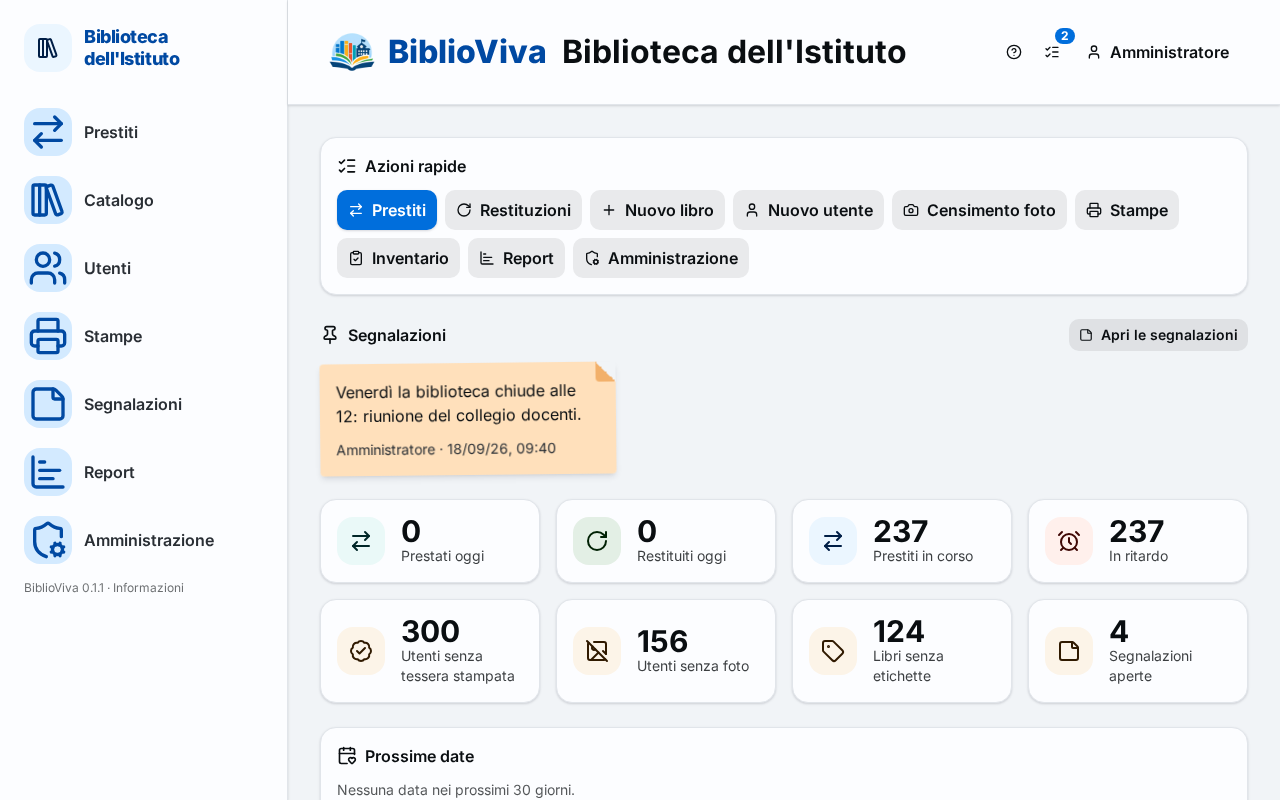
- Name and logo of the library: Header.
- Quick actions.
- Pinned notes.
- Number tiles.
- Add to the Home screen: phone only.
- Stocktaking in progress.
- Upcoming dates.
- Due this week.
- Today's loans.
Header
At the top appear the logo, the name of BiblioViva and the name of the library. An installation with sample data also
shows a yellow panel here: "This installation holds sample data loaded on <date>: <n> patrons, <n> titles,
<n> copies, <n> loans. Everything is made up: no real person." To remove the sample data see
Remove the sample data.
Quick actions
The Quick actions section is a row of buttons, each named after the page it opens. Only the ones allowed to the account appear:
| Button | Opens | Account |
|---|---|---|
| Loans | Loans | Administration |
| Returns | Returns | Administration |
| New book | New book | Cataloguing, Administration |
| New patron | New patron | Cards and photos, Administration |
| Photo census | Photo census | Cards and photos, Administration (only with photos on) |
| Printing | Printing | Cards and photos, Cataloguing, Administration |
| Stocktaking | Stocktaking | Cataloguing, Administration |
| Reports | Reports | Reports, Administration |
| Administration | administration page | Administration |
| Imports | imports page | whoever can import without being an administrator |
The catalogue and the list of patrons have no button here: they open from the side menu (or from the bottom bar on the phone).
Pinned notes
Below the quick actions appear, as coloured slips, the notes that the administrator has pinned (see Notes). The Open the notes button leads to the full list. Without pinned notes the section does not appear.
Number tiles
The section, titled "The library today" for people who read with a screen reader, shows one tile for each number. Pressing a tile opens the page where the matter is settled. Tiles that report a problem are yellow or red, those in order are green; the colour is always accompanied by text and an icon.
For whoever has the loans permission:
- Lent today: opens Loans.
- Returned today: opens Returns.
- Open loans: opens Books on loan.
- Overdue: opens Overdue notices; red if there is at least one overdue loan.
For whoever has the patrons permission:
- Patrons without a printed card: opens Printing.
- Patrons without a photo: opens the Photo census. It appears only if the library requires photos.
For whoever has the catalogue permission:
- Books without labels: pressing the tile opens a window to print the labels of the books that do not have them yet. With zero books the tile cannot be pressed. See Print book labels.
- Books to classify: appears only when there are some; opens To classify.
For the administrator:
- Open notes: opens Notes; yellow if there is at least one.
Stocktaking in progress
While a stocktaking is open, the Stocktaking section appears with the name of the campaign and its progress ("<n>
of <n> (<n>%)" copies seen). The Continue button resumes the work in Stocktaking. It is seen by
whoever has the catalogue permission.
Add to the Home screen
On the phone, if the browser allows it, below the tiles appears the Add to the Home screen section with the text "BiblioViva opens like an app, full screen, from the icon on the phone." Install adds the icon; Not now hides the section in that browser. In Firefox the section points to the browser's ⋮ menu, where to choose “Install” or “Add to Home screen”. On the computer the section does not appear. It is an optional extra: the desk is used with the computer and the barcode scanner.
Upcoming dates
The Upcoming dates section lists the dates to remember from the Calendar in the next 30 days,
nearest first. Without dates it shows "No dates in the next 30 days."; if there are more than those shown, "and <n>
more". The Open the calendar button leads to the calendar. The section is visible to all accounts.
Due this week
The Due this week section lists, for whoever has the loans permission, the books that must come back by the end of
the week, with the patron's name and the due date ("due <day>"). The number in brackets is the total. If there are
none: "No loan is due by <day>." The week starts on the day chosen by the administrator (the First day of the
week setting).
Today's loans
The Today's loans section shows, for whoever has the loans permission, two lists: Lent today and Returned today, with the time, the patron's name and the title. If there is nothing yet: "Nothing yet today." The same pair of lists appears in Loans while no patron is chosen.