
Patrons
The Patrons page lists the students and teachers enrolled in the library. Use it to find a patron, open their record, print the cards (of a whole class or of some chosen patrons) and, with the right permission, remove the patrons who have left the school.
The page opens from the Patrons item of the menu (on a phone, in the bottom bar, among the main items) and from the Patrons tab of the Photo census. The accounts "Cards and photos" and "Administration" use it. Removing patrons belongs to "Administration".
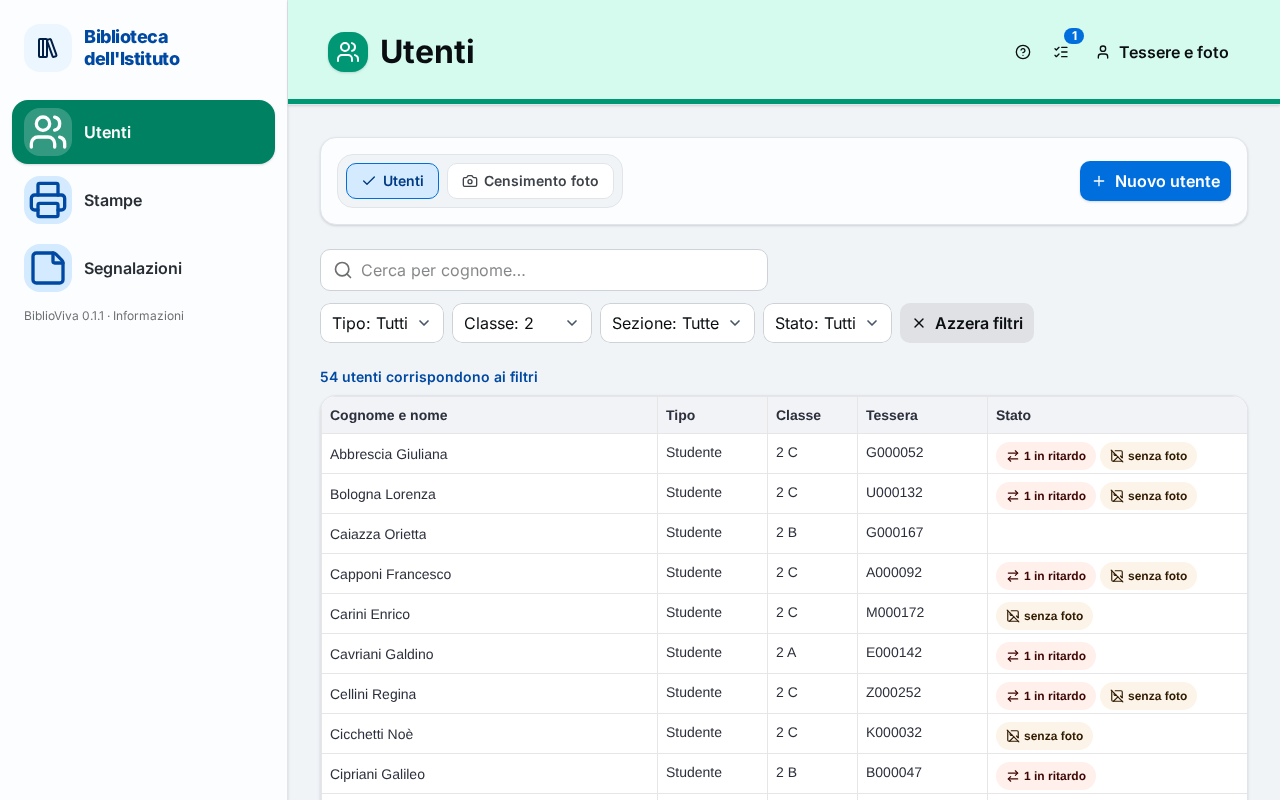
In the figure:
- The tabs of the area: Title bar.
- The search field: Search.
- The filters: Filters.
- The Print cards button of the chosen class: Printing the cards.
- The list of patrons with the status of each: List of patrons.
- The Export menu: Export.
Title bar
Under the title are the tabs of the area: Patrons and Photo census. The second appears only if patron photos are active (the administrator can switch them off). The New patron button opens the form New patron.
Search
Like the catalogue, the list is empty on opening: the page writes "Find a patron" and "Search by name, card or with the filters." The list appears when at least three characters are typed in the Search by surname… field, or a number made only of digits (even a single digit), or when a filter is chosen. To find a patron from the card, read its code with the barcode scanner while the cursor is in the search field.
Typing mistakes are corrected: the results found this way carry the Similar mark and the results line says so (see Results).
Filters
The filters also work alone, without text.
- Type: All, Student or Teacher.
- Stage: the school stage (for example primary or secondary). It appears only in a school with several stages; the entries have the form "Stage: name".
- Year: the year of study. The entries have the form "Year: 3". If a stage is chosen, they are those of that stage.
- Section: the section of the class, for example B. The entries have the form "Section: B"; the word can change in the school, because it is chosen by the school settings. If a year is chosen, the sections that host it remain.
- Status: Active or Removed. A removed patron keeps only the type, the class and the loan history for the statistics; it no longer has a name.
The Clear filters button appears as soon as a filter is active.
Results
Above the list a line says "N patrons match the filters", with "plus N similar, found by correcting a typing mistake" when there are approximate results. If nothing matches, the page writes No patron matches the filters.
List of patrons
Each row is a patron. The columns are:
- Surname and name;
- Type: Student or Teacher;
- Class: the class, for example
3 B; for teachers the name of the teachers group; - Card: the number of the card, or nothing if the patron has none;
- Status: the marks of what needs attention, each with colour, icon and text: "N on loan", "N overdue" (in red), "no photo" (in orange, only if the school requires the photo).
The headings Surname and name, Type and Class sort the list. A click on the row opens the Patron record; to choose several patrons, click with the Ctrl or Shift key.
Printing the cards
When a class is chosen in the Section filter, next to the search field appears the Print cards button followed by the name of the class (for example "Print cards 3 B"). With several patrons chosen in the list, Print cards in the selection bar prints only the cards of the selected patrons.
The button opens the Print cards window. The complete procedure, with cutting and folding, is in the guide Print the cards of a class. The window contains:
- How to print: Front and back side by side (front and back next to each other on the same side of the sheet, to be cut out and folded: it works with any printer) or On both sides of the sheet (the printer prints front and back, ten cards per A4 sheet);
- the list "In the browser's print window:", which says what to set in the print window: two-sided printing with the flip side indicated (only for printing on both sides), the scale at 100 % ("Actual size", not "Fit to page") and the margins at zero. The last line says how to cut out the cards, according to the template (crop marks, coloured line or edge);
- Print, which opens the card print page in a new browser tab, and Close, which exits without printing;
- for the administrator, with printing on both sides, the link Calibrate two-sided printing, to use the first time or if the backs do not fall behind the fronts (see Calibrating two-sided printing).
After printing, the card must be marked as printed from the patron record (see Card) or from the print list (see Cards marked as printed).
Selecting several patrons
Ctrl-click or Shift-click on the rows chooses several patrons. Above the list "N selected" appears with the buttons:
- Print cards: see Printing the cards;
- Add selected to a list: puts the patrons in a print list (see Adding to the list from the catalogue or from the patrons);
- Remove selected, in red, only for "Administration": see Removing several patrons.
Removing several patrons
Remove selected opens the confirmation "Remove N patrons?". The window warns that for each one the first name and surname, the contacts, the student id, the notes, the card number and the photo are erased at once and for good, and that only the type, the class, the section and the loan history remain, for the statistics. The patrons who still have open loans are not removed: they stay in the archive, and a final message says "N removed, N with open loans kept".
Warning. Removal erases the personal data immediately and irreversibly. There is no waiting period and no way to undo it. The procedure for a single patron is in the guide Remove a patron.
Export
The Export menu, under the list, downloads the patrons found, with the filters in use, in CSV (spreadsheet, text) or ODS (LibreOffice / Excel).