
Wishlist
The Wishlist collects the books that patrons ask for and that the library does not have: a place to note them down on the spot, see which are the most requested and, when the book arrives, move on to cataloguing without rewriting anything. The page is opened by the "Loan management" account (Wishlist tab of the circulation desk), by "Cataloguing" (Wishlist tab of the catalogue) and by "Administration". For the step-by-step procedure see Record a wished-for book.
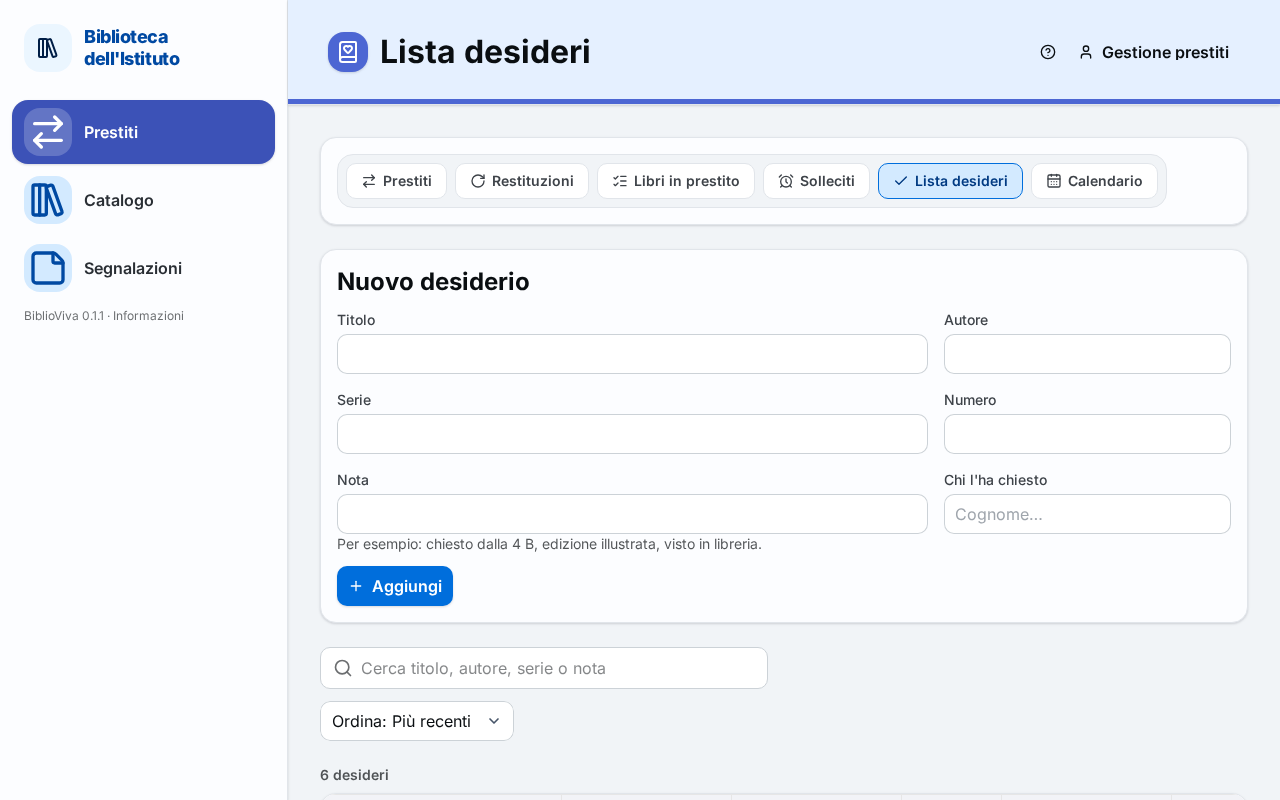
Wish form
The form at the top, titled New wish, has these fields:
- Title, Author and Series: at least one must be filled in, otherwise "Write at least the title, the author or the series." appears. The Series field suggests the names of the series already in the catalogue.
- Number: the number of the volume in the series.
- Note: for example "asked by class 4 B, illustrated edition, seen at the bookshop".
- Asked by: the patron who made the request, chosen with the search by name. The field is there only for accounts that have the loans permission; Remove removes the chosen patron. Filling it in is optional.
The Add button saves the wish and "Wish added" appears. If the same book is already on the list, a second wish is not created: its requests increase, and "Already on the list: one more request" appears. If a field is too long: "A field is too long."
Pressing a row of the list turns the form into Edit the wish, with the data of that row: Save the changes records them ("Wish saved") and Cancel returns to the empty form.
Books already present
By typing at least three letters in the title, the author or the series, under the form appears a tile showing what the library already has, to avoid duplicates:
- Already in the catalogue: the books of the catalogue with a similar title and author, each with the link to its
record and, in grey, "
<n>of<m>available" or "no copies". If the book is there and can be lent, the wish is not needed. - Already on the list: the similar wishes, with the number of requests ("
<n>requests") and the +1 request button, which adds a request to that wish instead of creating a new one.
Search and sorting
Above the list, the Search title, author, series or note field filters the wishes and the Sort menu arranges them: Most recent, Most requested, Title or Author.
List of wishes
Above the table: "<n> wishes". The table has the columns Title, Author, Series, Requests,
Asked by, Note and Added on. The Asked by column is seen only by the accounts that can look up patrons
("Loan management" and "Administration"). If the list is empty: "No books on the
wishlist."
Under the table the Export menu downloads the list as a CSV or ODS file.
Actions on the chosen wishes
Selecting one or more rows with the checkbox at the start of the row, "<n> selected" appears with the buttons:
- +1 request: adds a request to each chosen wish ("
<n>requests added" appears). It is for when another patron asks for the same book. - Catalogue it: appears only for accounts that have the catalogue permission and only when one row is chosen. It
opens New book with the data of the wish already filled in: the strip "From the wish:
<title>" reminds where one starts from. When the book's record (or the new copy of a book already in the catalogue) is saved, the wish leaves the list and "Wish removed from the list" appears. See Catalogue a new book. - Delete: removes the chosen wishes, after the confirmation "Delete the chosen wishes?" with the text "
<n>wishes leave the list. This cannot be undone." On confirmation "<n>wishes deleted" appears.