
Overdue notices
The Overdue notices page gathers the loans that are past due, divided by class, and prepares the sheets to print and hand to the teachers so that they remind the students to bring back the books. The page is opened by the accounts that have the loans permission ("Loan management" and "Administration") from the Overdue notices tab of the circulation desk or from the Overdue tile of the dashboard. For the step-by-step procedure see Print the overdue notices.
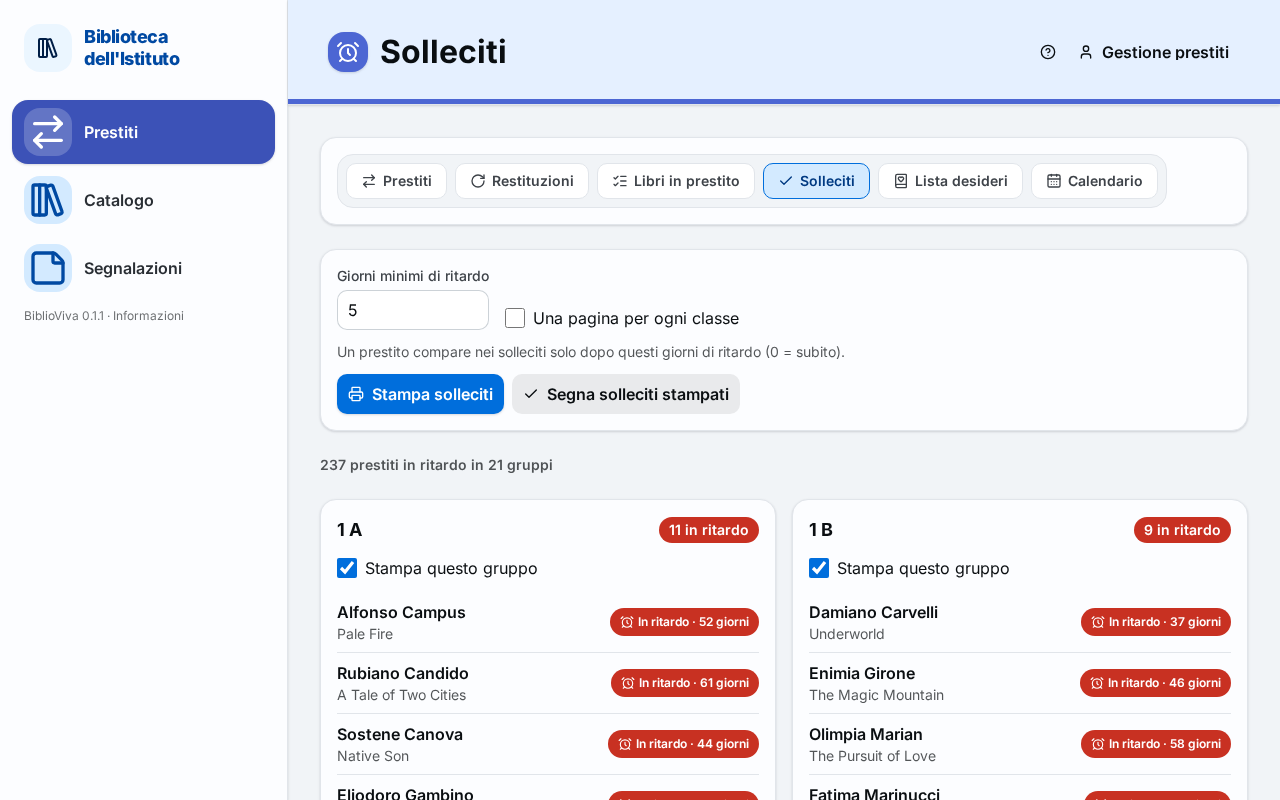
- Print settings.
- Summary.
- Groups of overdue loans.
- The buttons Print notices and Mark notices printed.
Print settings
At the top, in the settings panel:
- Minimum days late: a loan appears in the notices only after this many days late (0 = straight away). The initial number is the one chosen by the administrator (Days late before a notice); it can be changed here for the current print only, from 0 to 365.
- One page per class: each class on its own sheet, to hand to the teacher. The initial value is the one set by the administrator (One page per class).
Summary
Under the settings the summary says how much there is to remind: "<n> overdue loans in <m> groups". If no loan
exceeds the minimum days: "No overdue loans to remind."
Groups of overdue loans
The overdue loans are grouped by class, in the order of the classes; teachers form a separate group (Teacher, at the bottom) and patrons without a class another (No class). Each group has:
- the name of the class and the number of loans ("
<n>overdue"); - the Print this group checkbox, normally on: switching it off leaves the group out of the print and of the marking;
- a row per loan with the title of the book, the days of lateness ("
<n>days", in red) and, if a notice had already been printed, "last notice<date>"; the patron's name appears on mouse hover over the title.
Print notices
The Print notices button opens in a new tab the notices sheet for the chosen groups: a block per class with the patron's name, the title and the days of lateness, one sheet per class if One page per class is on. Print from the tab with the browser's functions, at actual size. The button is off if no group is chosen.
Mark notices printed
The Mark notices printed button records today's date as the last notice of the loans of the chosen groups, so that
the next day it is known who has already been reminded. Before marking, a window asks for confirmation: "Mark <n>
notices as printed?", with the explanation "Today's date shows as the last notice in the loans list." On confirmation
the Mark notices printed button of the window records the date and "<n> notices marked as printed." appears. The
date is then seen in the Last notice column of Books on loan. The button is off if no group is chosen.
Note. Printing and marking are two separate actions: BiblioViva does not know whether the sheet really came out of the printer. Mark the notices only after printing.