
Edit a patron's data
This page explains how to correct the data of a student or a teacher already entered: a misspelt name, a wrong class, an email, a note for the circulation desk. It is for whoever manages the patrons.
- Time: about 2 minutes.
- Account: "Cards and photos" (also "Administration").
- Requirements: the patron's surname, or the number of their card.
- Moving all the classes to the next year is not done one patron at a time: the administrator does it with Upgrade the classes.
Procedure
Find the patron
- Log in to BiblioViva with the "Cards and photos" account.
- Open Patrons.
- Write at least three letters of the surname in the Search by surname… field. Alternatively use the Type, Year and section filters. The list appears only after a search or a filter.
- Press the patron's row. The Patron record opens.
Edit the data
-
Press Edit. The Edit patron page opens, with the fields filled in.
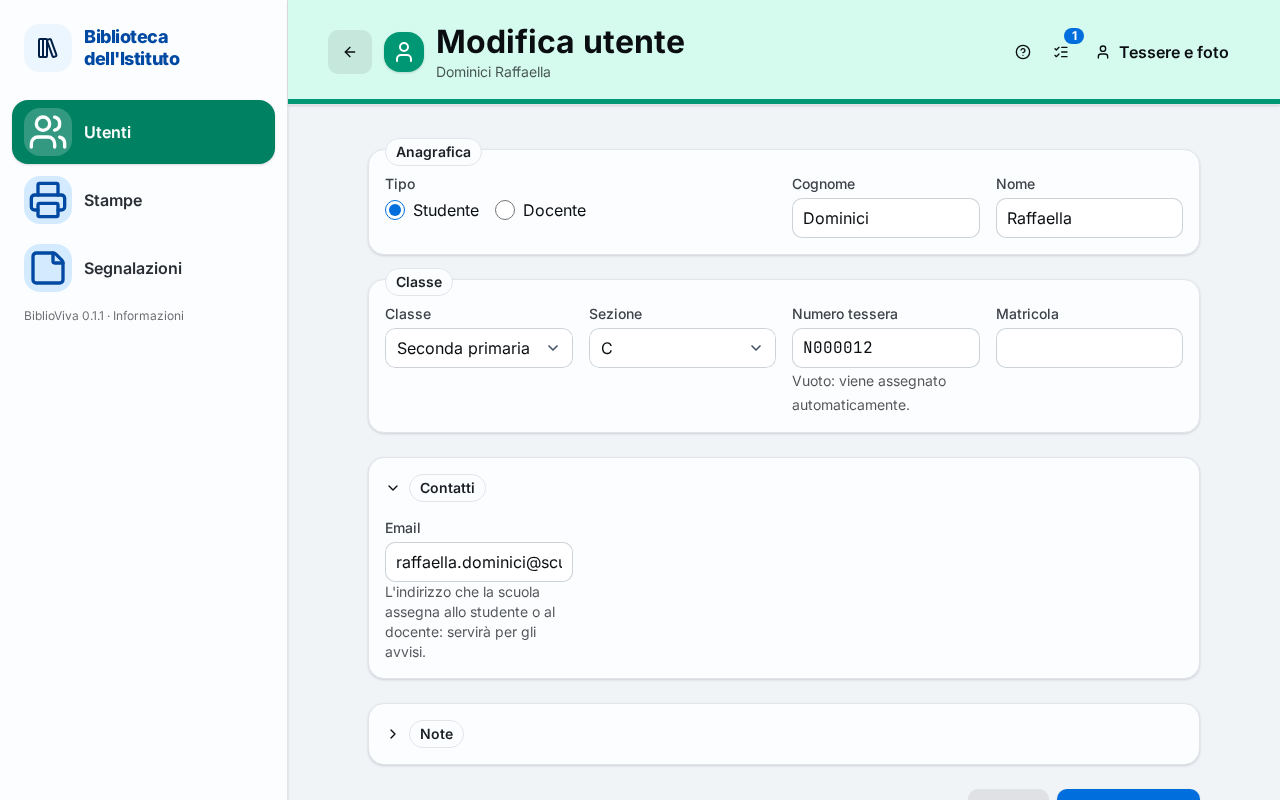
Figure 1. The Edit patron page with the data of a student -
Correct the field to change: Surname, First name, Student id, or, in the Contacts part, Email.
-
To change class choose another year in Class, then the section in the next field.
-
Leave the Card number field as it is. For a lost card see Reprint a card.
-
Press Save changes. The Patron record opens again with the updated data.
To cancel, press Cancel: nothing changes.
Edit the notes only
The notes are changed directly in the record, without opening the Edit patron page.
- In the Patron record open the Notes tab.
- Press Edit notes.
- Write the Note for the circulation desk: it appears prominently when a loan is made. The Internal notes stay in the record and do not appear at the desk.
- Press Save. The notice "Notes saved" appears.
Result
The record shows the corrected data. The loans already registered keep the class the patron had that day: the change applies from now on. The History tab lists the past loans and does not change.
Possible problems
- "A student needs a class (the level)." and "A student needs a section.": choose the year and the section.
- "Section not found among the active classes: classes are created in Administration → Configuration → Classes.": the section does not exist yet. Ask the administrator to create it: Set up the classes.
- "This section has no such class: choose a section of the class.": choose the section again after choosing the year.
- "Student id already assigned to another patron.": the student id belongs to another person; check that the same patron was not entered twice.
- "Invalid email address.": correct the address.
- "No change": nothing was changed in the notes.