
Lend a book
This page explains how to record the loan of one or more books to a patron who comes to the desk with their card. It is for staff at the circulation desk using the "Loan management" account.
- Time: less than a minute for each patron.
- Account: "Loan management" (also "Administration").
- Requirements: the patron's card, the books to lend and the barcode scanner connected to the computer. For a patron who has forgotten the card, see Lend to a patron who does not have the card with them; for a book without a label, Lend or return a copy without a label.
Procedure
-
Open Loans from the side menu. The Loans page opens, with the Card or patron's name field ready to receive a scan.
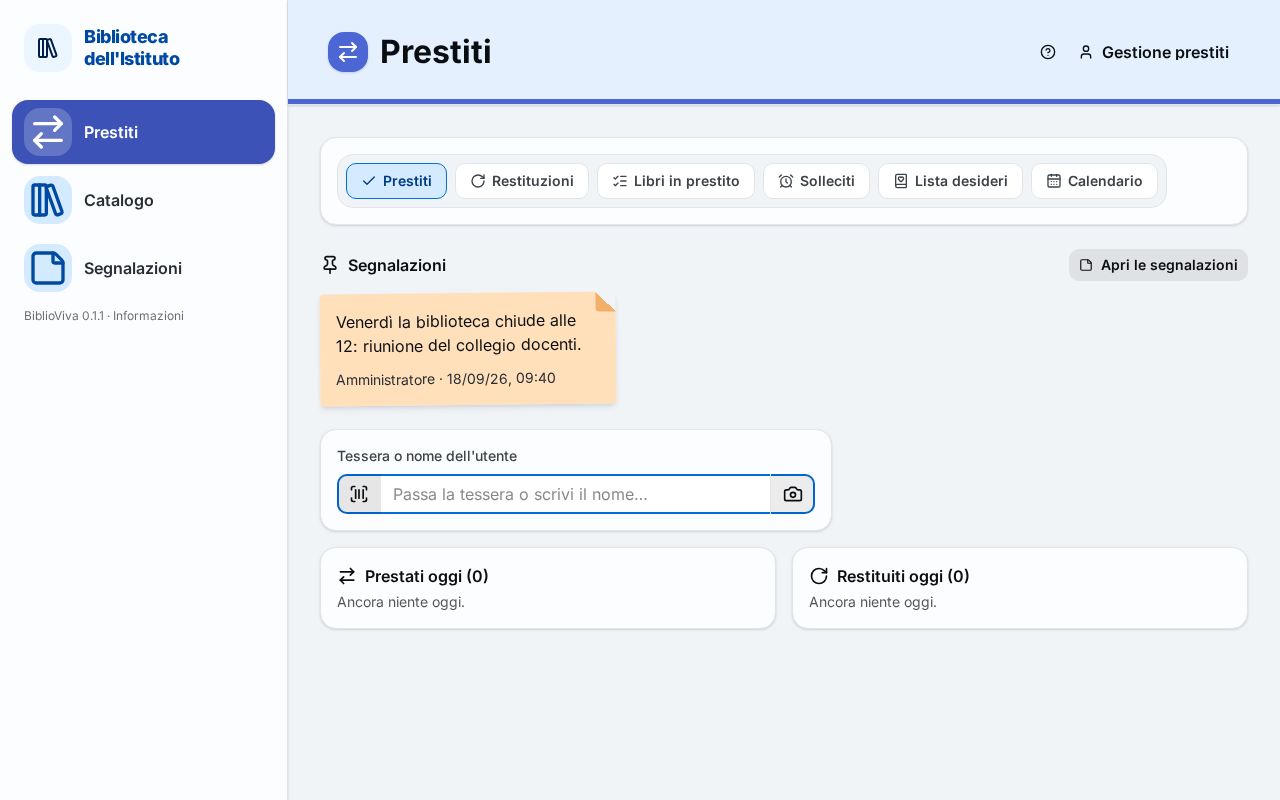
Figure 1. The Loans page, ready to read a card -
Read the patron's card with the scanner. The field becomes Scan the book and the patron's record appears on the right: name, class, how many loans the patron has against the limit (for example "1 of 1 loans") and the books already on loan, each with its due date.
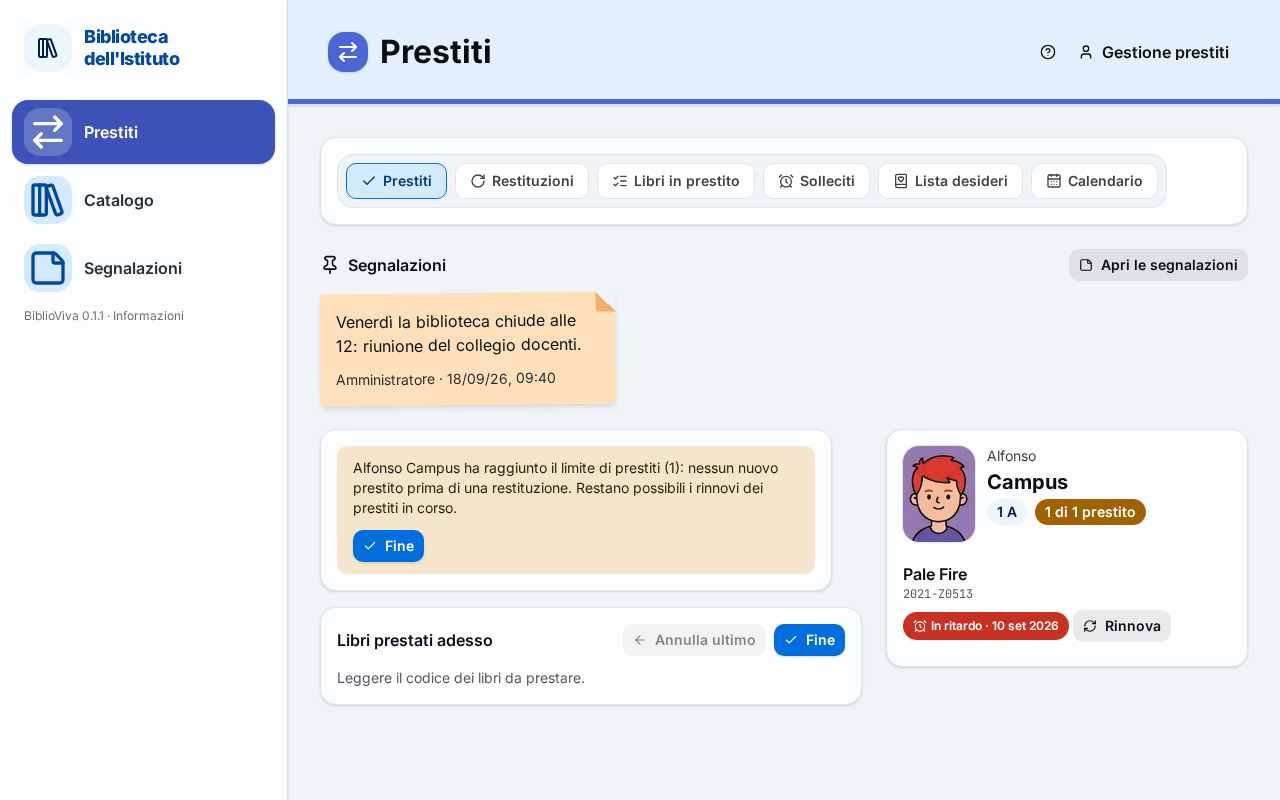
Figure 2. The patron's record after the card is read -
If the Note for the desk appears in the record, read it: it is a notice written for whoever lends.
-
Read the barcode of the first book. A message confirms the loan with the due date and the book enters the Books lent now list.
-
Read the following books, one after the other, without touching the keyboard. Each book enters the list with its due date.
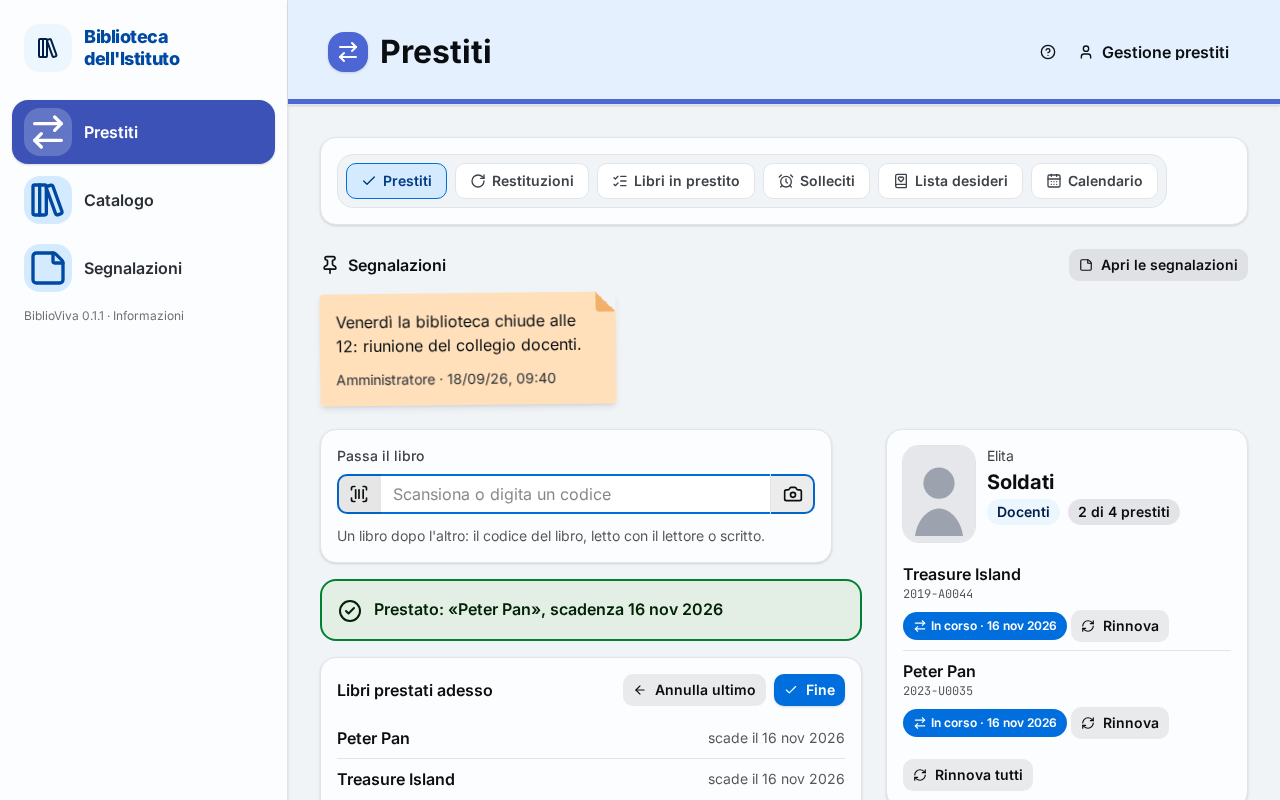
Figure 3. Two books lent: the list with the due dates -
If the last book read was not meant to be lent, press Undo last. The book becomes available again and the loan is cancelled.
-
With receipts switched on, press Print receipt to print the sheet of the books just lent.
-
Press Done. The page returns to the Card or patron's name field, ready for the next patron.
Note. With a queue of patrons, press Done for each person and read the next card straight away. Reading another card without pressing Done also switches to the new patron, but the Books lent now list of the previous one disappears: print the receipt first, if needed.
With the phone (optional)
With the secure Tailscale address (HTTPS) the phone can read cards and books with its camera.
- Press the Camera button next to the field.
- Frame the barcode. The page continues as with the scanner.
Result
Each book read is on loan to the patron, with the due date calculated from the loan rules and the school calendar. The due date appears in the patron's record, in Books on loan and in the account's lists. If the due date falls on a closing day, the page moves it to the first open day and says so in a message.
The rules (loan days, maximum number of books, renewals) are set by the administrator: see Set the loan rules.
Possible problems
Every anomaly at the desk appears in a message that says what happened and what to do. The messages are listed one by one on the Loans page; here are the most frequent cases.
The patron has reached the loan limit
The Loan limit reached window opens, with the titles still out, and the field for books does not appear. With the default rules a student can have one book at a time and a teacher four.
- Ask the patron for the book already on loan.
- Press Go to Returns and record the return by reading the barcode of that book, as in Return a book.
- Go back to Loans and read the card again.
The limit cannot be forced, not even with the "Administration" account: a return is always recorded by reading the book. Renewals of the loans in progress remain possible (Renew a loan).
The book is on loan to another patron
The book was handed over but not returned, or the return was not recorded. Press Go to Returns: the code read passes to the returns page, where it is confirmed with Enter. Then go back to Loans.
The book is already on loan to the same patron
The message offers to renew the loan. Press Renew to renew it, Cancel to leave it as it is.
The book was read before the card
The message asks to read the card first. If the book is being returned, press Go to Returns; otherwise read the card and then the book again.
The code is not recognised
The message shows the form of this library's codes. Read the code again; if the label is damaged, type the code in the field and press Enter. For a book without a label or with an unreadable label see Lend or return a copy without a label.
The book cannot be lent
A reference copy, a lost or withdrawn copy and a book still to be classified cannot be lent: the message says which case it is. Only the "Administration" account has the Force (admin only) button, for reference copies and for copies in an unavailable status (never for a withdrawn copy); the window asks for a reason, which stays in the loan's log. For a book to be classified, the Classify button is for the "Cataloguing" account.
The patron has overdue books
The message lists the overdue books but the loan goes ahead. Press Print a reminder to print a sheet for the patron. The loan is blocked only if the administrator has switched this rule on.
The session closes by itself
After two minutes without operations (the default value) the page closes the loan and says so. Read the card again to continue: the books already read are already on loan.
The card belongs to a removed patron
The card is no longer valid. There is nothing else to do at the desk: for a new card see Reprint a card.
The scanner does not type into the field
Click in the field and read again. If the scan produces nothing, type the code by hand and press Enter.