
Use the print lists
This page explains how to gather patrons in a print list, to print their cards in one go and keep track of who has already had them. It is for whoever prepares the cards: for example the cards of new enrolments, of whoever has not received one yet, of a reading group. There are also lists of copies, for the books' labels: see Print book labels.
- Time: about 5 minutes.
- Account: Cards and photos (also Administration). The patron lists are seen with the permission to manage patrons; the book lists with the one to manage the catalogue.
- Requirements: no material. To add people with the scanner their cards are needed, already printed.
Procedure
Create a list
-
Log in to BiblioViva with the "Cards and photos" account.
-
Open Printing. The page lists the lists, each with the kind, the number of entries and the date of the last printing or "Never printed".
-
Press New patron list. The "New list of patrons" window opens.
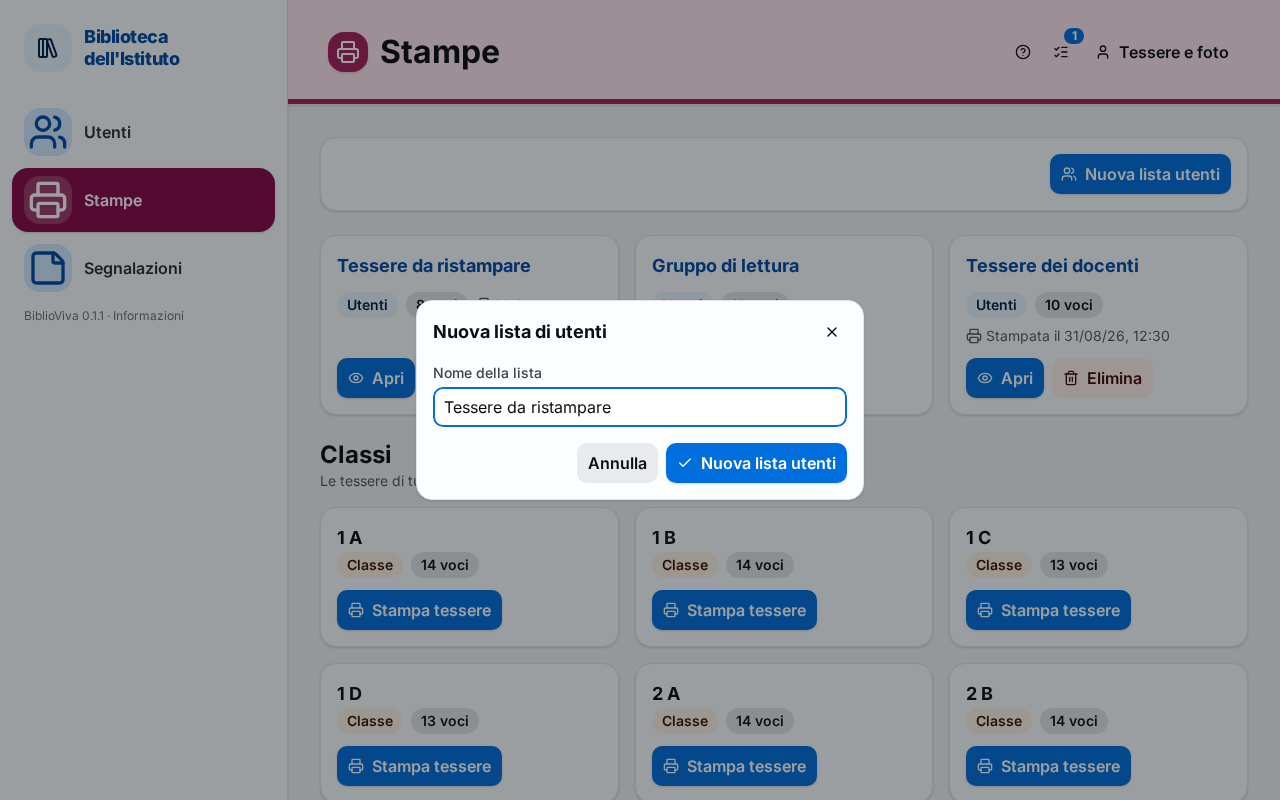
Figure 1. The Printing page with the patron lists and the New list of patrons window -
Write in the List name field a name that recalls the purpose, for example "New enrolments". If left empty, BiblioViva proposes a name such as "List 3 of …" with today's date.
-
Press New patron list in the window. The page of the list opens, still empty.
Fill the list
The three ways described below can be used together. Whoever is already in the list is not added twice.
Fill the list with the filters
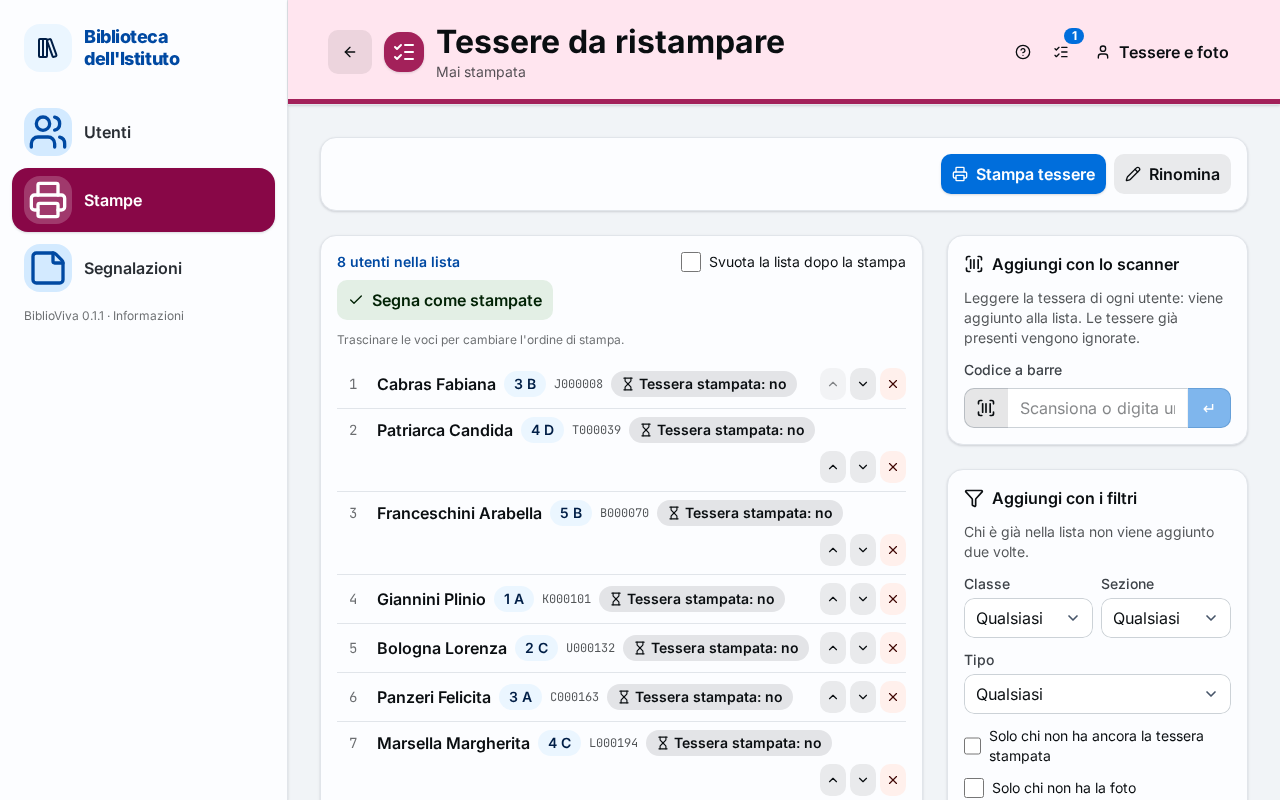
- In the Add with filters panel choose what is needed. Year and the section field limit to one class; Type to students or teachers. In a school with several stages there is also Stage.
- To get only whoever has not received the card, switch on Only those whose card was never printed.
- To get only whoever has no photo, switch on Only those without a photo. The choice appears only if the administrator has switched on the photo reminder.
- To get the new enrolments of an import, choose the import in Import. For whoever was entered from a certain date, give the date in Created from.
- Press Add to the list. The notice "N added, M already present" appears. With "No patron matches the filters." nobody was added.
Fill the list with the barcode scanner
- In the Add with the scanner panel click in the reading field.
- Read each patron's card with the scanner. Under the field "… added" or "… is already in the list" appears.
Fill the list from the Patrons page
- Open Patrons and select the rows by holding down Ctrl, or Shift for a range, while pressing on the row.
- Press Add selected to a list. In the "Add to a print list" window choose an Existing list or a New list with its Name of the new list, and press Add.
From the Patron record the same operation is the Add to a list button.
Arrange the list
- Check the list: each entry shows the patron and whether the card is printed ("yes" or "no").
- To change the print order, drag the entries or use Move up and Move down.
- To remove an entry press Remove from the list. The patron stays in the archive.
- To change the name press Rename, write the new name and press Save.
Print the cards
- In the page of the list press Print cards. The Print cards window opens, which shows the number of cards.
- Choose how to print and press Print, then follow the instructions of Print the cards of a class.
Mark the cards as printed
Printing alone marks nothing. When the cards have come out of the printer well:
- To empty the list at once, switch on Empty the list after printing. Otherwise leave the box off.
- Press Mark as printed. The notice "N cards marked as printed" appears.
The date of the last printing is read under the name of the list. The lists with cards still to print are counted in the Print lists icon of the top bar; its menu opens a list or All lists.
Close the list
- To reuse it later leave it as it is.
- To remove all its entries press Empty and confirm with Empty in the "Empty the list?" window. The patrons stay in the archive.
- To delete the list press Delete and confirm with Delete in the "Delete the list …?" window.
Result
The list contains the chosen patrons, in the wanted order. The printed cards show "yes" in the Card printed column, and the Printing list shows the date of the last printing. The Patrons without a printed card number of the Dashboard goes down.
Possible problems
- The Add to the list button of the filters panel is off: no filter has been chosen.
- "No patron with card …" with the scanner: the number read belongs to nobody. Read the card again.
- "The scanned code is not a card": another kind of code was read, for example that of a book.
- "Print cards" is off: the list is empty. Add the patrons first.
- The lists are missing in the Printing page: the account sees only the lists of its own kind. The book lists require the permission to manage the catalogue.
- The cards do not come out as expected: see the possible problems of Print the cards of a class.