
Find a book
This guide explains how to find a book in the catalogue by title, author, ISBN or copy barcode, how to narrow the search with the filters and how to read the record that opens. It is for anyone who works in the library and has access to the catalogue.
- Time: less than 1 minute.
- Account: "Loan management", "Cataloguing", "Reports" or "Administration". The "Cards and photos" account does not see the Catalogue.
- Requirements: nothing. To search with a code: the USB barcode scanner.
Procedure
Search by typing
-
Open Catalogue. The page is empty until a search is made: "Search the catalogue" appears.
-
Write one or more words in the Search by title, author or ISBN… field. The order of the words does not matter, the beginning of a word is enough ("harr pott") and accents and capitals do not matter. The closest results come first.
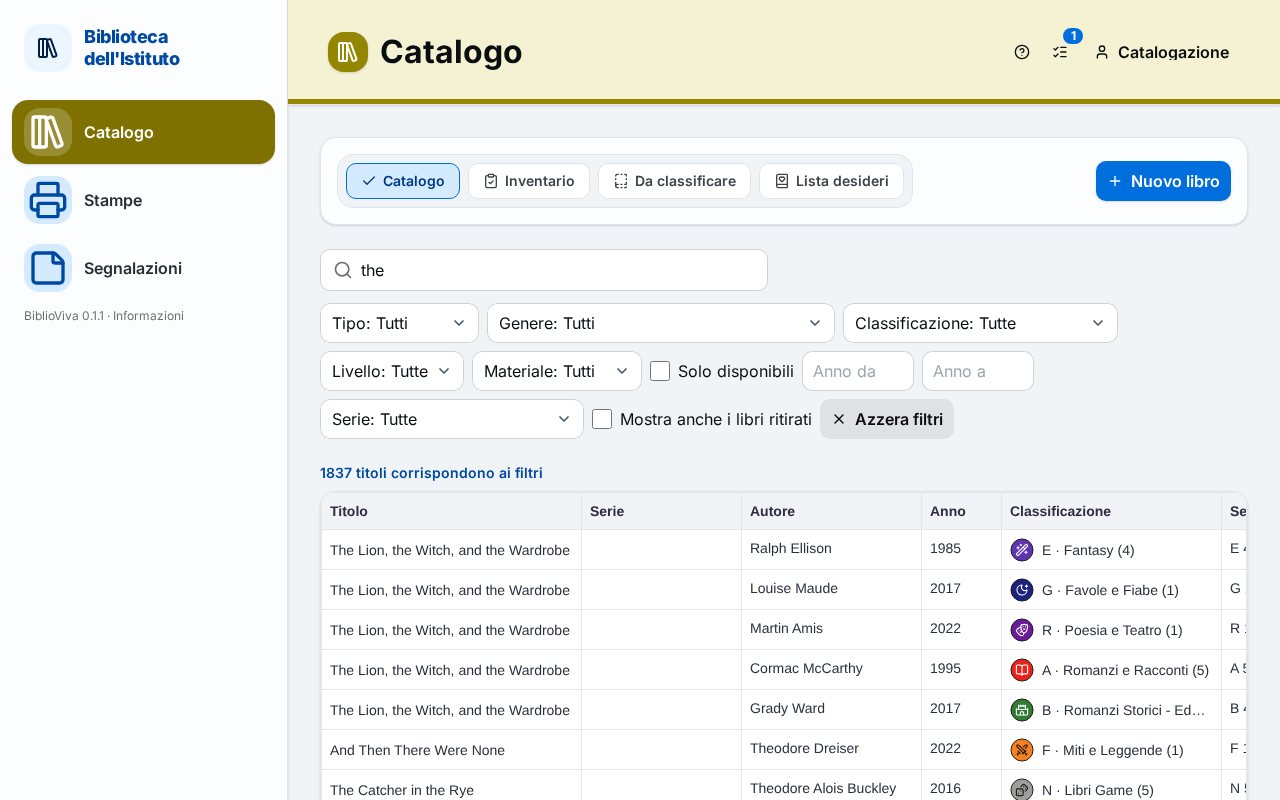
Figure 1. The Catalogue with a search and the results in a table -
Read the line "N titles match the filters" and the table below. The columns are Title, Series, Author, Year, Classification, Call number, ISBN, Acquired and Copies: the Copies column says how many copies are available, for example "2 of 3 available", or "No copies".
-
Press the row of the book to open its record.
If the word searched is misspelt, BiblioViva also shows similar titles, with the label Similar: check that it is the book sought.
Search by reading a code
- Open Catalogue and put the cursor in the search field.
- Read with the scanner the barcode of the copy label, or the ISBN on the back of the book. The scanner writes the code and confirms by itself.
- The record of the book opens directly. If the code is only similar to that of a copy, the notice "The code … is a copy of "…"" appears with the link Open the record.
Narrow with the filters
The filters are above the table and can also be used without writing anything in the search field.
- Choose a Kind: Fiction, Non-fiction or To classify.
- For fiction choose the Genre; for non-fiction the Classification (subject). If the library uses reading levels, Level also appears.
- Choose the Material (book, DVD…) and, if needed, the Series.
- Tick Available only to see the books that have at least one copy on the shelf.
- Write a year in Year from and in Year to, both with four digits, to limit the publication dates.
- To see also the books whose copies are all withdrawn tick Also show withdrawn books.
- To go back to the empty page press Clear filters.
Read the record of the book
-
Open the record with a click on the row. At the top are title, author, publisher and year, the kind and the classification, the series with the number (a click on the name of the series lists all the books of the series), the ISBN and the count "N available of M".
-
In the Copies tab read for each copy the Barcode, the Call number, the Status and On loan to. The accounts that manage loans or patrons see the name of who has the book; the others read "On loan" with the due date ("due …").
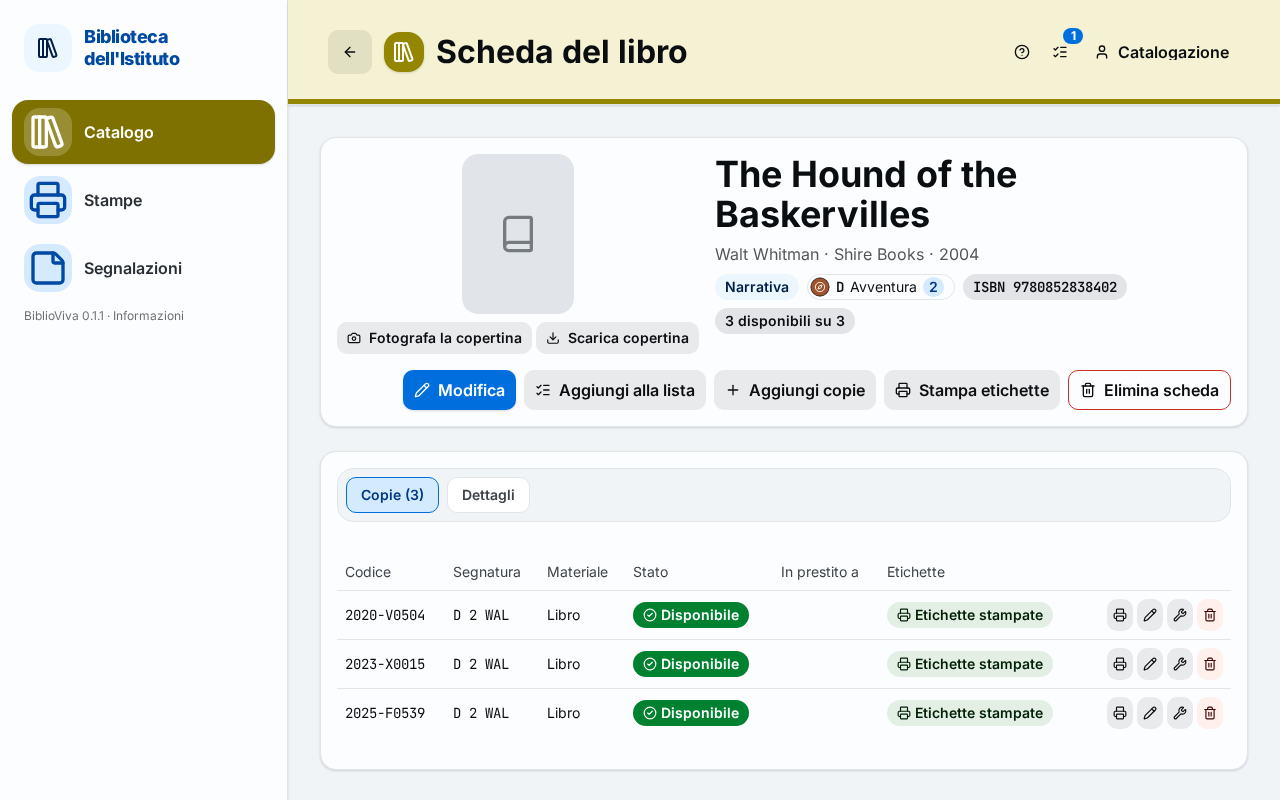
Figure 2. The record of a book with the list of the copies -
In the Details tab read the data that the table does not show: subtitle, original title, physical description, subjects and notes.
-
To go back to the list press the arrow at the top left: the search and the filters are still the previous ones.
Export the list
- Under the table press Export and choose CSV (spreadsheet, text) or ODS (LibreOffice / Excel). The file contains the results of the search with the filters applied.
Result
The record of the book is open and the copies say where they are and whether they can be lent.
Possible problems
- "No book matches the filters.": remove a filter, write fewer words or only the author's surname, or press Clear filters.
- The book exists but does not appear in the list: if all its copies are withdrawn tick Also show withdrawn books. The Available only filter hides the books without copies on the shelf.
- The table does not change while typing: the search starts at 3 characters; a code of digits only (an ISBN or part of it) is searched with any length.
- The book appears twice: two records of the same title exist, for example because one was written without an ISBN. Add the copies to only one and remove the other record with Correct a book record.
- The scanner does not open the record: the code read is neither that of a BiblioViva copy nor an ISBN present in the catalogue. Check that the cursor is in the search field, then try typing the title.