
Photo census
The photo census gives a photo to all the patrons, class by class: the people are photographed one at a time, or the image of a whole class is uploaded (the photographer's sheet, a page of ID photos) and BiblioViva cuts out the single photos. The photo appears on the card and at the circulation desk, where it helps to recognise the patron.
The page opens from the Photo census tab of the Patrons area, from the dashboard (the Photo census action and the box of the patrons without a photo) and at the end of the student import. The accounts "Cards and photos" and "Administration" use it. The administrator can switch photos off: in that case the census, the class pictures and the photo import are not offered anywhere.
The census has three pages: the choice of the class or the list, the page of a class and the page of a picture. The procedures are in the guides Take the patrons' photos and Get the photos from a picture of the class.
Choosing the class or the list
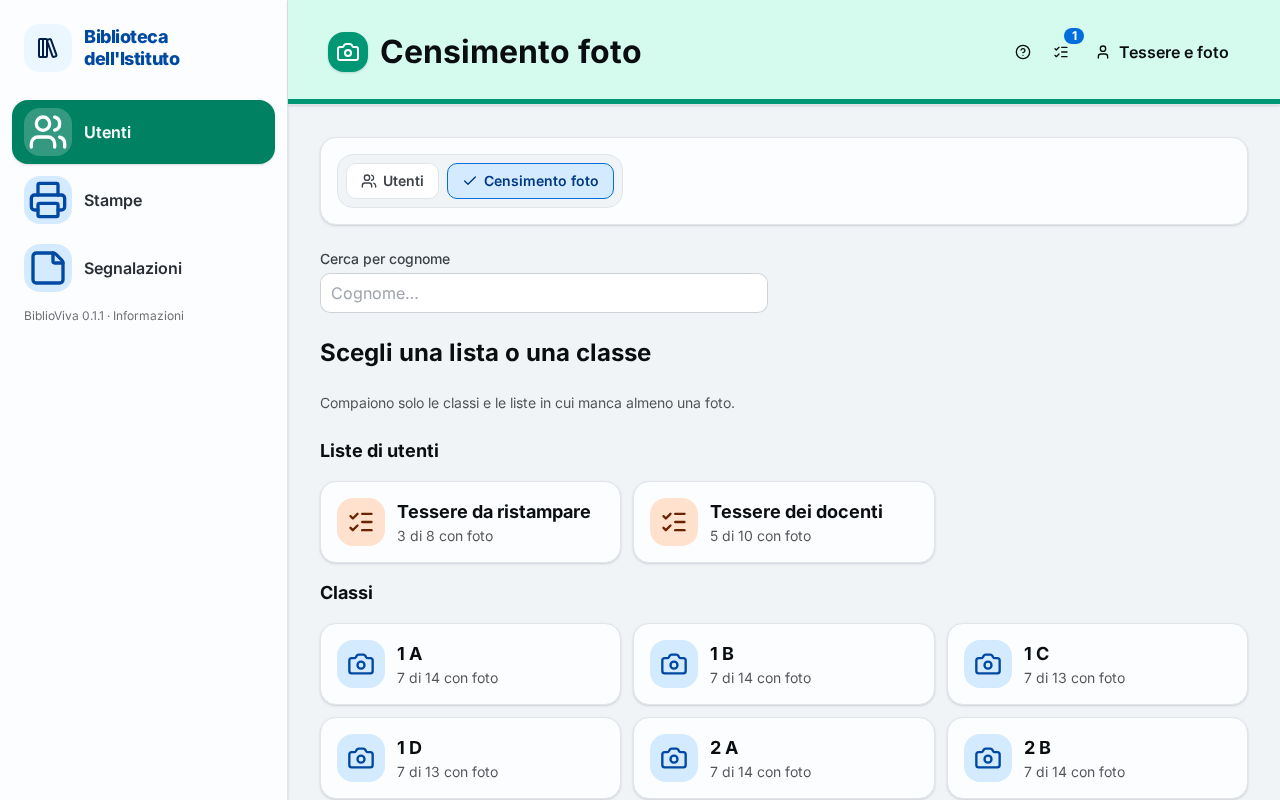
In the figure:
- The tabs Patrons and Photo census: Choosing the class or the list.
- The Search by surname field: Finding a person.
- The patron lists: Lists and classes.
- The classes, stage by stage: Lists and classes.
Finding a person
The Search by surname field leads straight to a person: once the name is chosen, the class opens and the photo of that patron starts.
Lists and classes
Under Choose a list or a class appear the patron lists (Patron lists) and the classes (Classes; in a school with several stages, one section per stage). The page warns: "Only the classes and lists where at least one photo is missing are shown." Each choice is a box with the name and the progress "N of M with a photo"; the patrons with no class assigned appear as Without a class. When everything has been photographed, the page writes "Every class and list has its photos."
Class page
Choosing a box opens the page of the class (or the list). The back button Change class or list returns to the choice; the address remembers the class, so the browser's Back button and reloading also stay on the class. At the top a line gives the name and the progress: "N of M with a photo".
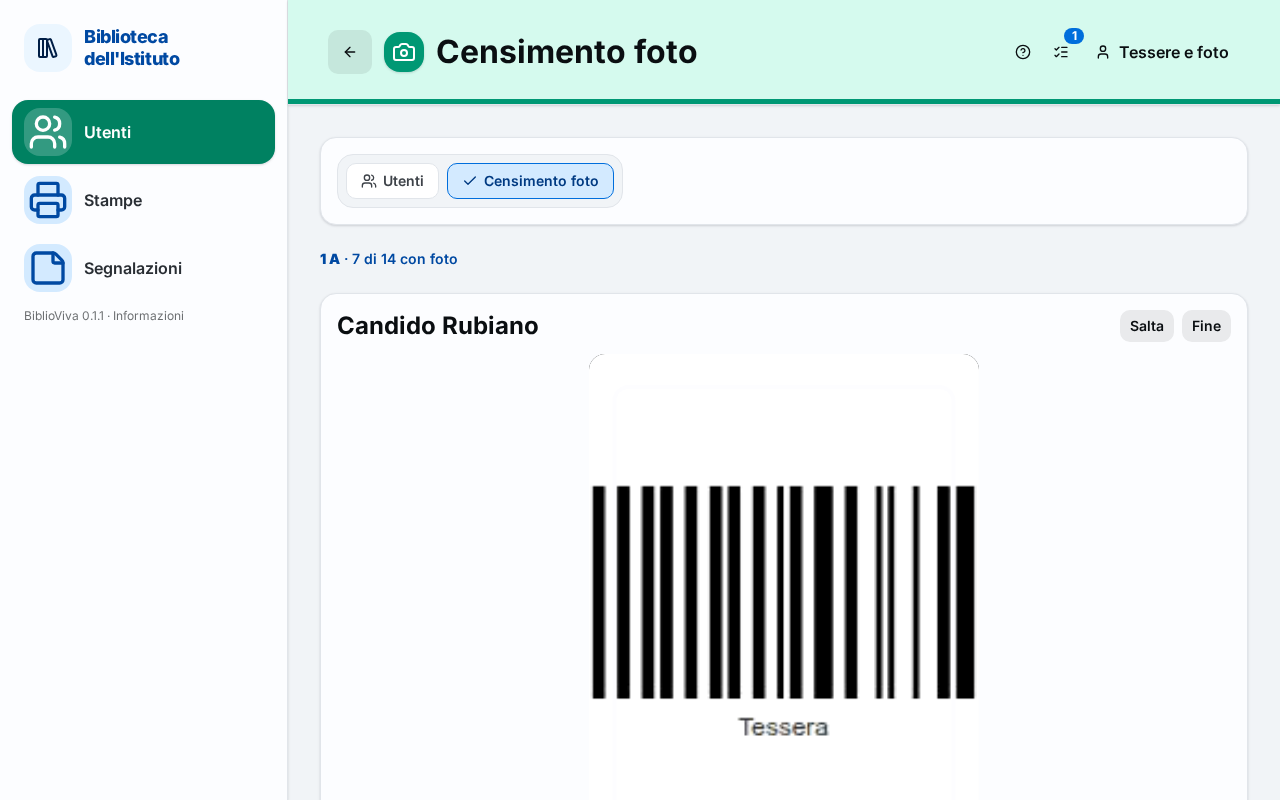
In the figure:
- The Change class or list button: Class page.
- The camera with the name of the person and the buttons Skip and Done: One person at a time.
- The list of people, with the photo already taken: One person at a time.
- The From a picture with many photos box: From a picture with many photos.
One person at a time
Under the title One person at a time is the list of the people of the class, each with the thumbnail of the photo (or a placeholder). A click on a name opens the camera for that person:
- Frame the face of the patron. Alternatively press Upload file to choose an image already prepared.
- Press Take photo.
- Drag the image to frame, adjust the Zoom and press Use this photo. Retake repeats the shot.
- A message says "Photo saved: name" and the page moves by itself to the next person without a photo.
The camera is optional and works only with a secure connection (https), that is with Tailscale; without it, a file is uploaded for each person. On a phone the camera takes up the whole screen and stays on between one shot and the next.
The Skip button moves to the next person without a photo; Done closes the camera. When everyone has a photo, the page writes "Everyone has a photo."
New patron
For a class or for the teachers group (not for a list nor for Without a class), the New patron button adds at once a person who is missing. The page warns: "Added to class name, their photo comes next."
- Press New patron.
- Write Surname and First name. If the class hosts several years of study, choose the Class.
- Press Add and photograph. The patron is created and the camera opens for their photo.
Errors appear under the form. For the complete data of the patron, the patron record is then used.
From a picture with many photos
The From a picture with many photos box is for when the photos are on a single image: a photographer's sheet, cards laid out on a table, a page of ID photos. The page explains: "Pictures with several photos […]: the photos are found automatically and assigned to each patron."
- Upload picture chooses a file from the computer. BiblioViva resizes it and opens it in the picture page.
- Photograph the sheet appears only on the phone and takes the picture with the phone's camera.
- With the sample data, while a photo is missing, there are also Sample from a scanner and Sample from a photo: two test pictures, one flat and one taken at an angle.
Below, the list of the pictures already uploaded for the class, the most recent first: each gives "N photos found · N saved · N to do", or Not processed yet if the photos have not been looked for yet. A click reopens the picture. If there are none, the page writes "No picture for this class or list."
Picture page
The Photos from a picture page opens an uploaded picture and allows assigning each photo to a person. The back button Back to the class returns to the class. At the top right are Save the photos (off until there is something to save) and Delete picture.
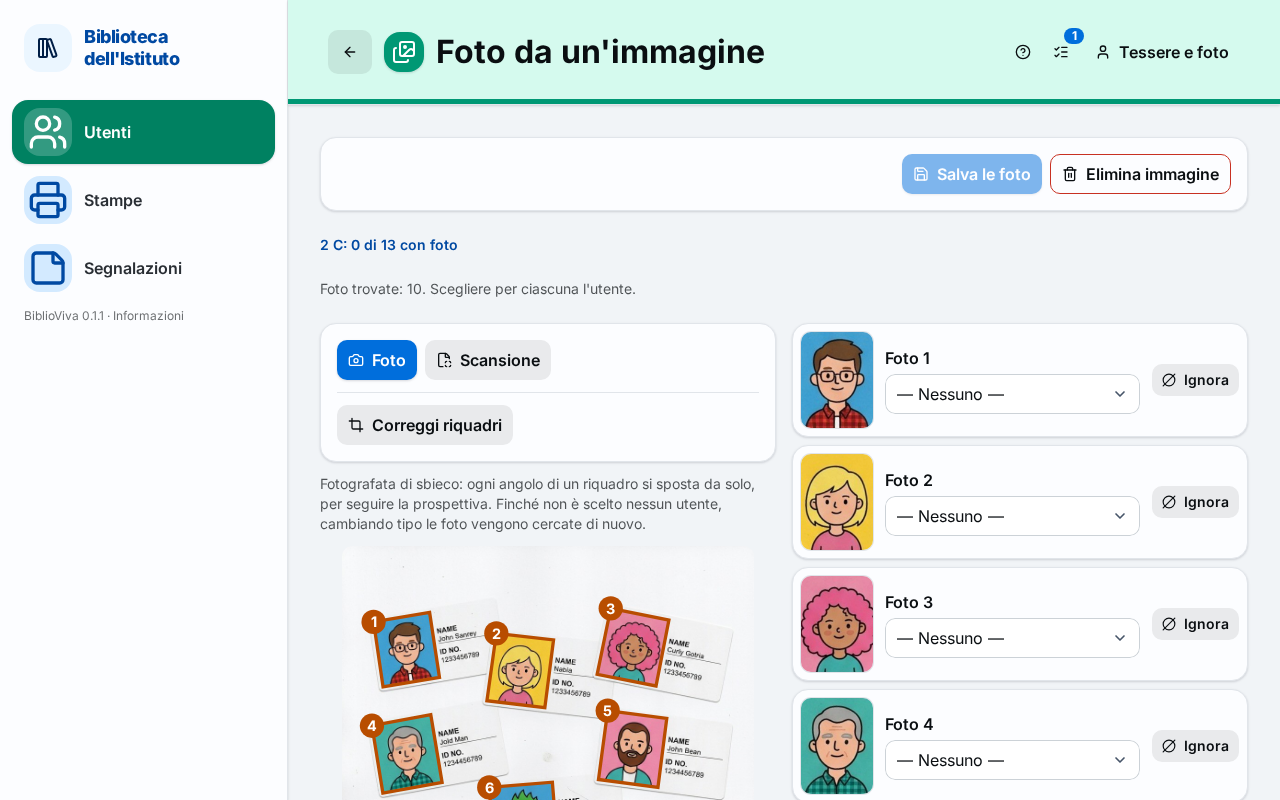
In the figure:
- The progress of the class: Searching for the photos.
- The bar with Photo/Scan and Correct frames: Correcting the frames.
- The picture with the numbered frames: Correcting the frames.
- The list of the photos found, with the choice of who it is: Assigning the photos.
- The buttons Save the photos and Delete picture: Saving the photos.
Searching for the photos
The first time the picture opens, the browser looks for the photos: the page writes "Looking for the photos in the picture…" (the first time a recognition module is also loaded, with a progress bar). At the end it says "Photos found: N. Choose whose each one is." or "No photo found. With "Correct frames" they can be drawn by hand." Above, the progress line: "class name: N of M with a photo".
Correcting the frames
Above the picture a bar offers:
- the kind of picture, Photo or Scan. Photo is for a picture taken at an angle: each corner of a frame moves on its own, to follow the perspective. Scan is for a picture made with a scanner: the frames stay rectangles and can only be turned. As long as no patron has been chosen, changing the kind looks for the photos again;
- Correct frames, which shows the frames on the picture to correct them (then it becomes Done correcting). Tap a frame and drag its corners; in a scan, a corner makes the frame larger or smaller and the circle above it turns it;
- Add frame, for a missing photo: drag on the picture from one corner of the photo to the other;
- Delete frame N, to remove a wrong frame (it appears after choosing it).
Assigning the photos
Next to the picture, one row for each photo found: Photo N with the cropped thumbnail and a drop-down list Who is it? with the names of the class. Each name says whether it "already has a photo" or has "no photo". A person can have only one photo in this picture: if already chosen elsewhere, their name appears as "(already in photo N)" and cannot be selected.
The Ignore button marks a photo that is nobody of the class (for example a teacher or a person of another class): the row turns grey and Restore brings it back as it was. A photo of a patron removed in the meantime is covered and the row says so ("Patron removed: the frame has been covered in the picture.").
Saving the photos
- Press Save the photos. The window Save the chosen photos? sums up: "Photos to save: N."
- If some replace a photo that already exists, the window lists the names: "They replace the existing photo of: …". If frames remain with nobody chosen, it says "Frames with nobody chosen: N (left as they are)."
- Press Save the photos in the window. A message confirms "Photos saved: N."
After saving the row turns green: "Saved as the photo of name". If someone in the class is still without a photo, the Still without a photo box lists their names, with the Photograph them one by one button, which returns to the class.
Delete picture asks for confirmation ("Delete the picture?"): the picture and its frames are deleted; the photos already saved stay with the patrons.
Page messages
Under the button bar these warnings may appear.
Picture too large
"The picture is too large (at most N MB)." Reduce the picture or take it again.
Unsupported format
"Unsupported format: use JPEG, PNG, WebP or HEIC." "The file is not a readable image." and "The file is empty." say that the file is not suitable.
Too many photos in a picture
"At most N photos per picture." Split the picture.
Person already chosen
"Already chosen for photo N: free it before choosing them here." Each person has only one photo per picture.
Photo already saved
"This photo has already been saved." The frame can no longer be changed.
Replacement to confirm
"N photos replace existing ones: confirm to go on." The saving window asks for confirmation.
Nothing to save
"Choose at least one patron before saving."
Picture or class not found
"Picture not found." and "The class or the list no longer exists." appear if the picture or the class has been deleted in the meantime.
Recognition module not loaded
"The straightening module could not be loaded. Check the connection and try again." The module that finds the photos is downloaded the first time; an Internet connection is needed.