
Printing
The Printing page gathers the print lists: lists of patrons, whose cards are printed, or of copies, whose labels are printed. A list makes it possible to prepare the printouts when convenient (for example the new enrolments of the year) and to know what has been printed and what has not. Under the lists are the classes, whose cards are printed without creating a list.
The page opens from the Printing item of the menu (on a phone, in the bottom bar, under More), from the Print lists button in the top bar and from the dashboard. The accounts "Cataloguing", for the lists of books, "Cards and photos", for the lists of patrons, and "Administration", for both, use it: each account sees only the type of list that belongs to it. The procedure is in the guide Use the print lists.
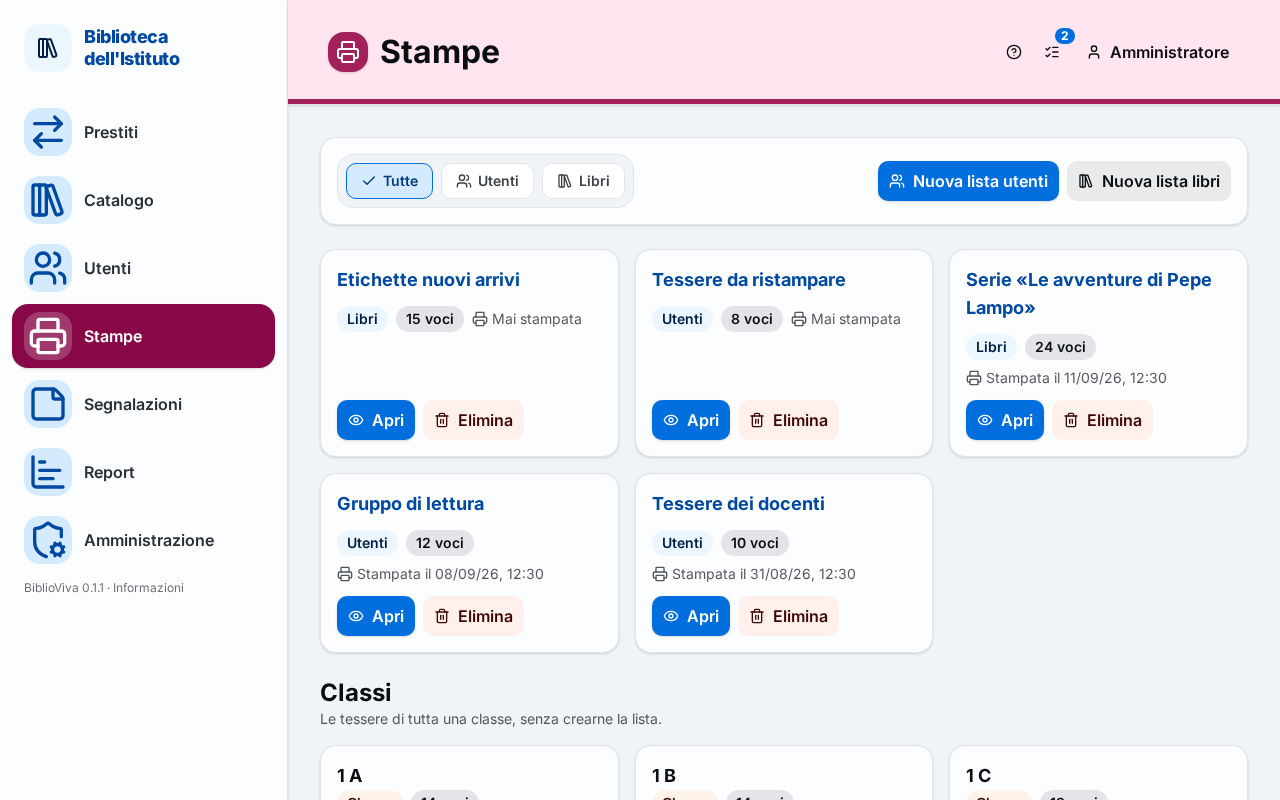
In the figure:
- The buttons New patron list and New book list: Creating a list.
- The choice of the kind All, Patrons, Books: Title bar.
- The lists, each with the kind, the number of entries and the last printing: The lists.
- The classes with the Print cards button: The classes.
- The Print lists button in the top bar: Print lists button.
Title bar
Under the title are the buttons to create a list and, for an account that sees both kinds, the choice of the kind (Kind): All, Patrons or Books. The choice filters the lists shown below.
Creating a list
The buttons are New patron list (for those with the permission on patrons) and New book list (for those with the permission on the catalogue).
- Press New patron list or New book list.
- In the List name field write a name, or leave it empty: the list takes the proposed name, in the form "List 3 of 29/10/2026".
- Press New patron list or New book list again in the window. A message says "List created" and the list opens, empty.
Lists are also created by adding patrons or copies from other pages (see Adding to the list from the catalogue or from the patrons).
The lists
Each list is a card with the name (a link), the kind (Patrons or Books), the number of entries ("N entries") and the date of the last printing: "Printed on …" or "Never printed". The buttons are:
- Open: opens the List page;
- Delete, in red: asks for confirmation ("Delete the list “name”?") and warns: "The entries leave the list; the patrons stay in the archive." The list disappears; the patrons and the copies stay where they are.
If there are no lists, the page writes "No lists. Lists are created here or with “Add to a list” on the Patrons and Catalogue pages."
The classes
Under the lists, for the accounts that manage patrons, the Classes section shows a card for each class (in a school with several stages, stage by stage), with the Class mark and the number of patrons. The note says: "The cards of a whole class, without making a list of it." The Print cards button opens the window to print the cards of that class, described in Printing the cards.
Print lists button
In the top bar, next to the account, the Print lists button carries a number: the lists that still have something to print. Its menu lists the lists in the form "name (N)": an entry opens the list. If there are none, the menu says "No list to print". The entry All lists opens this page. The icon appears for the accounts that can print cards or labels.
List page
The page of a list shows the name, under it the date of the last printing ("Printed on …" or "Never printed"), and the entries. On the left are the entries of the list, on the right the ways to add more.
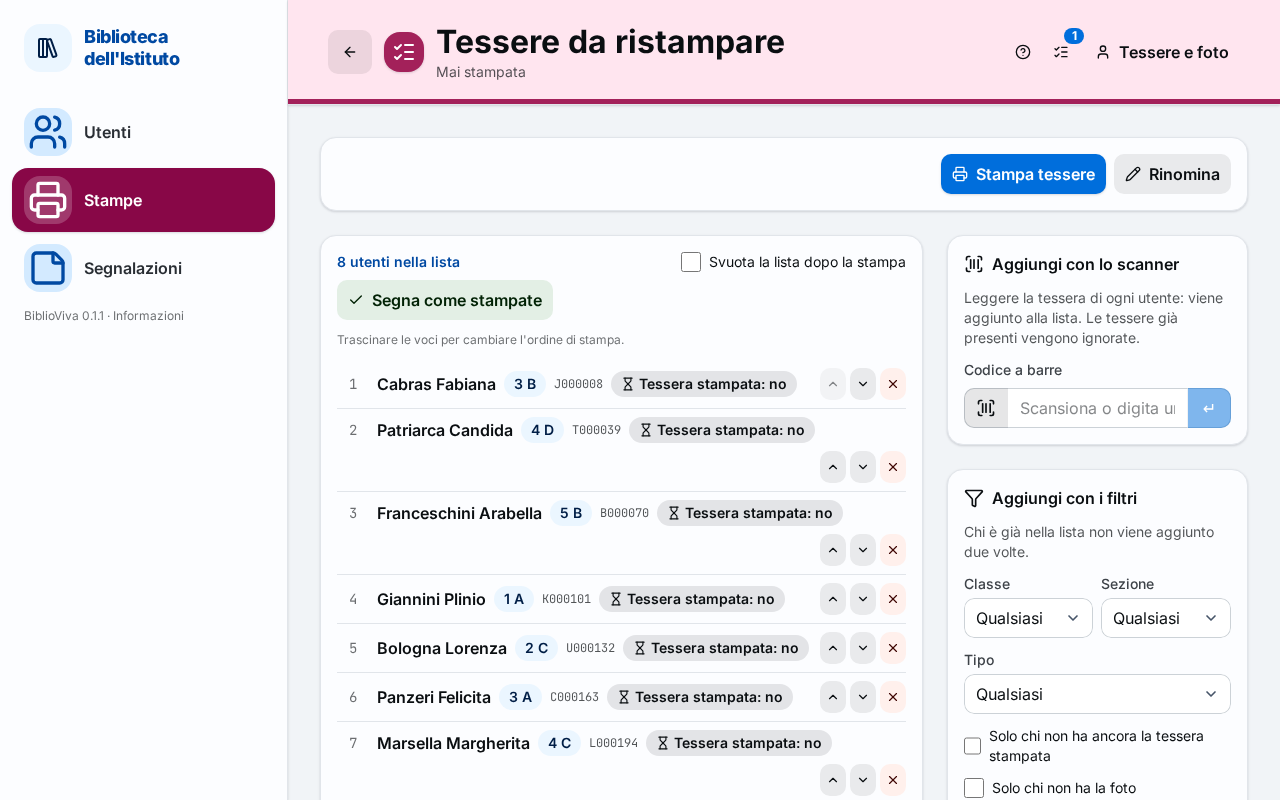
In the figure:
- The buttons Print cards and Rename: List actions.
- The number of entries and the Empty the list after printing box: Cards marked as printed.
- The Mark as printed button: Cards marked as printed.
- The entries of the list: List entries.
- The Add with the scanner box: Adding with the scanner.
- The Add with filters box: Adding with filters.
List actions
The main button depends on the kind: Print cards for a list of patrons, Print labels for a list of books (it is off if the list is empty). Rename opens a field with the name, to confirm with Save (Cancel exits); an empty name is not accepted; a message confirms "List renamed".
- Print cards opens the window described in Printing the cards.
- Print labels opens the window described in Print labels, with all the copies of the list.
List entries
Above the entries, a line says "N patrons in the list" or "N copies in the list". If the list is empty, the page explains how to fill it: "The list is empty: add patrons with the quick filters, the scanner or from the Patrons page." (for books: "The list is empty: add copies with the quick filters, with the scanner or from the catalogue.")
The entries are in the order in which they will be printed. To change it, drag the entries ("Drag the entries to change the print order."), or use the Move up and Move down icons of the entry. The Remove from the list icon removes the entry; the patron or the copy stay in the archive. A patron entry also shows whether the card has already been printed (Card printed: yes or no); a book entry shows the status of the labels (Labels printed, One label missing or Labels to print). A click on the name opens the record of the patron or the book.
For a list of books, under the entries the Export menu downloads the list as CSV or ODS.
At the bottom of the list are Empty, which removes all the entries after confirmation ("Empty the list?"), and Delete, which deletes the list.
Cards marked as printed
After printing, the list must be marked, so that BiblioViva remembers what has been printed: the filters and the dashboard then show who is still without a printed card.
- If the list is needed only once, tick Empty the list after printing.
- For a list of books, choose in the adjacent list which labels have been printed: Pair, Barcode only or Spine band only.
- Press Mark as printed. A message says "N cards marked as printed" (or "N copies marked as printed").
If the list was of cards, the patron record also shows "Card printed on …".
Adding with the scanner
The Add with the scanner box is used to fill the list with the barcode scanner. For a list of patrons the note says "Scan each patron's card: it is added at once. Cards already in the list are ignored."; for a list of books, "Scan the barcode of each copy (for example walking along the shelf): it is added at once. Copies already in the list are ignored." The field already has the cursor. Each reading produces a notice:
- green: "name added" or "title (code) added";
- yellow: "name is already in the list" or "title (code) is already in the list";
- red: "No patron with card N", "No copy with barcode N", "The scanned code is not a card" or "The scanned code is not a copy" (when a code of the other kind is read).
Adding with filters
The Add with filters box adds at once all the patrons or all the copies that match the choices. The note says: "Whoever is already in the list is not added twice." After choosing, press Add to the list; the page says how many were added ("N added, N already present"), or "No patron matches the filters." (or "No copy matches the filters."). Filters not chosen do not limit.
For a list of patrons:
- Stage (only in schools with several stages), Year and Section (the word can change in the school);
- Type: Student or Teacher;
- Only those whose card was never printed;
- Only those without a photo (only if the school requires the photo);
- Import: the patrons of a previous import, in the form "no. 3 · file name · N new";
- Created from: a starting date.
For a list of books:
- Labels to print: Pair, Barcode only, Spine band only or "— every copy —";
- Acquired from and to: the range of acquisition dates;
- Genre and Non-fiction class;
- Copy type;
- Import: the copies of a catalogue import, in the form "no. 3 · file name · N copies".
Adding to the list from the catalogue or from the patrons
The Add to a print list window appears when Add to a list is pressed in the record of a book or a patron, Add selected to a list in the Catalogue or in the Patrons, or Add to the labels list after saving a New book.
- Choose Existing list and, in the list, the list (with the number of entries), or New list and write the Name of the new list, or leave it empty for the proposed name.
- Press Add. A message says "N added to “name”, N already present".
Only the lists of the right kind are offered (patrons for patrons, books for copies); if there are none, the window proposes at once to create one. In the catalogue all the copies of each book are added.