
Get the photos from a picture of the class
This page explains how to take the photos of a whole class starting from a single picture with many photos: the sheet of ID photos handed over by the photographer, the class cards scanned or photographed on a table, a page of ID-size photos. BiblioViva finds the photos in the picture by itself and asks, for each one, whose it is. It is for whoever manages the patrons. A group photo without distinct frames is not suitable: BiblioViva does not recognise faces.
- Time: about 15 minutes for a class.
- Account: Cards and photos (also Administration).
- Requirements: the picture, in a JPEG, PNG, WebP or HEIC file. The size limit is normally 32 MB and is set by the administrator. The photos in the picture must be vertical rectangles, taller than wide, clearly separated from the background. For each picture, normally, BiblioViva looks for at most 60 photos.
- The students must already be entered in the class: see Enrol a student.
- If the administrator has switched off the photos, the Photo census tab does not exist and this page is not needed.
Important. The picture shows the faces of minors and often their names too. BiblioViva keeps it until the end-of-year class upgrade, which deletes it, and shows it only to the accounts that manage the patrons. When the work is finished it is better to delete it at once, as described at the end of the procedure. The photos already saved stay with the patrons.
Procedure
Upload the picture
-
Log in to BiblioViva with the "Cards and photos" account.
-
Open Patrons.
-
Open the Photo census tab.
-
Choose the class, or the patron list, whose photos are at hand. Only the classes and lists where at least one photo is missing are shown.
-
In the From a picture with many photos part press Upload picture.
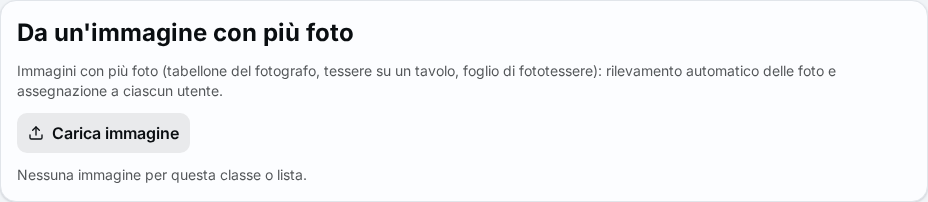
Figure 1. The page of a class with the From a picture with many photos part -
Choose the file with the picture. "Sending the picture…" appears and then the Photos from a picture page opens.
-
Wait. The page writes "Looking for the photos in the picture…" and then "Photos found: N. Choose whose each one is.".
Check the frames
Each photo found is a numbered frame, drawn on the picture.
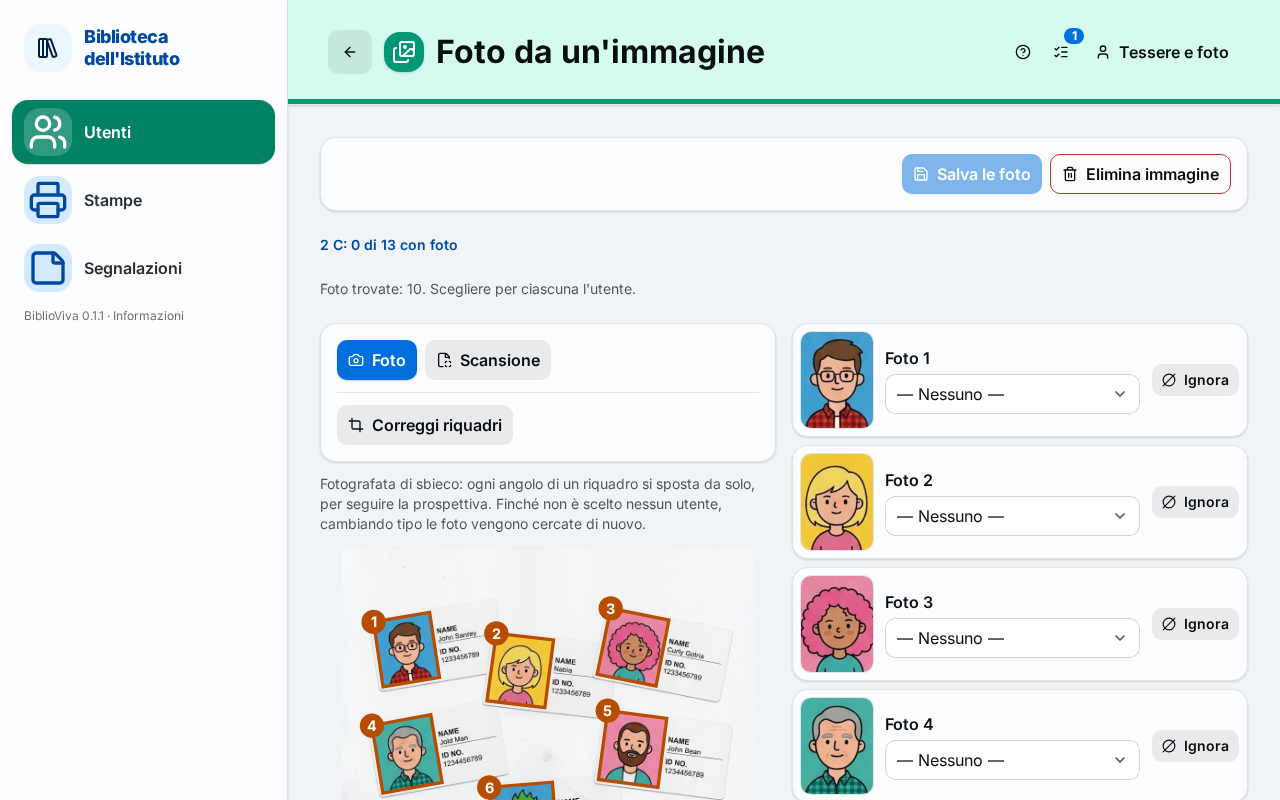
- Compare the number N with the photos the picture really contains.
- Above the picture check the kind of picture. Choose Scan if the picture was made with a scanner, where the photos are straight or slightly turned rectangles. Choose Photo if the picture was photographed at an angle, where the perspective bends the frames. Until no photo has been assigned, changing the kind makes it look for the photos again.
- If a frame is wrong or missing, press Correct frames.
- Press a frame to select it. With the Photo kind drag the corners one by one, until they coincide with the corners of the photo. With the Scan kind drag a corner to make the frame larger or smaller, and the circle above the frame to turn it.
- To remove a frame that is not a photo press it and then press Delete frame with its number.
- To add a missing photo press Add frame and drag on the picture from one corner of the photo to the other.
- When the correction is finished press Done correcting.
Assign the photos
- In the list beside the picture, or below the picture on a phone, choose the person for each photo in the drop-down menu. The menu shows the patrons of the class, each with the text "no photo" or "already has a photo".
- A person already chosen for another photo appears in grey with the text "already in photo N": each person has one photo only. To choose a different photo, free the other one first.
- Leave — Nobody — for a photo whose person is not known: it stays as it is.
- For a photo that belongs to nobody in the class press Ignore. Restore cancels the choice.
- The choices are kept as they are made, even if the page is closed. To resume them open Photo census again, choose the class and press the "Picture of …" item in the list of pictures.
Save the photos
-
Press Save the photos. The "Save the chosen photos?" window opens, which sums up "Photos to save: N.", the photos that replace those already present, with the names, and the frames with nobody chosen.
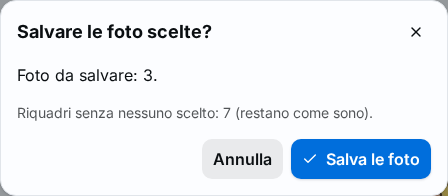
Figure 3. The confirmation window with the summary of the photos to save -
Press Save the photos in the window. The notice "Photos saved: N." appears. Each saved frame reports "Saved as the photo of …".
-
If patrons without a photo remain, after saving the page lists them under Still without a photo. To photograph them one person at a time press Photograph them one by one. Otherwise press Back to the class: the counter "N of M with a photo" is already updated.
Delete the picture
- Press Delete picture.
- Press Delete picture in the "Delete the picture?" window. The picture and its frames are deleted; the photos already saved stay with the patrons.
With the phone (optional)
On a phone, beside Upload picture appears Photograph the sheet, which opens the phone's camera. The phone is not necessary: the picture can come from a scanner or from a photo already saved on the computer.
Result
The chosen patrons have their photo, of the size set by the administrator, in the record and on the cards. In the census the class counter, for example "12 of 14 with a photo", has gone up.
Possible problems
- "No photo found. With "Correct frames" they can be drawn by hand.": try the other kind of picture, Photo or Scan; otherwise draw the frames with Add frame.
- "The straightening module could not be loaded. Check the connection and try again.": the search for the photos uses a component that the browser downloads the first time. Check the connection and reload the page.
- "The picture is too large (at most N MB).", "Unsupported format: use JPEG, PNG, WebP or HEIC." and "The file is not a readable image.": choose another file or reduce the picture.
- "At most N photos per picture.": split the picture in two, for example half a class at a time. Each class can have more pictures.
- "Already chosen for photo N: free it before choosing them here.": the person is already assigned to another photo. Free that one with — Nobody —.
- "Choose at least one patron before saving.": the Save the photos button stays off until at least one photo has a person.
- "This photo belonged to a removed patron: the frame has been covered.": the person was removed from BiblioViva after the choice. The frame is covered in the picture and cannot be used.
- The list does not offer a person who is in the class: the menu shows only the patrons of the chosen class or list. Check that they are entered in the right class, as explained in Edit a patron's data.
Related pages
- Take the patrons' photos
- Print the cards of a class
- Upgrade the classes, which deletes the pictures of the class
- Photo census