
New book
The New book page puts a new book in the catalogue, with its copies, starting from the ISBN: the barcode scanner reads the code, BiblioViva looks up the data of the book online, the operator checks it and saves the record together with the copies. If the book is already in the catalogue, the same page adds copies to the existing record. The procedures are in Catalogue a new book, Catalogue a book without an ISBN and Add a copy to a book already in the catalogue.
The page opens from the New book button of the Catalogue, from the quick action New book of the dashboard and from the Catalogue it button of the Wishlist. The accounts "Cataloguing" and "Administration" use it. At the top a four-step indicator shows how far the process has got: Code, Lookup, Record and copies, Completed. The back button leads to the catalogue.
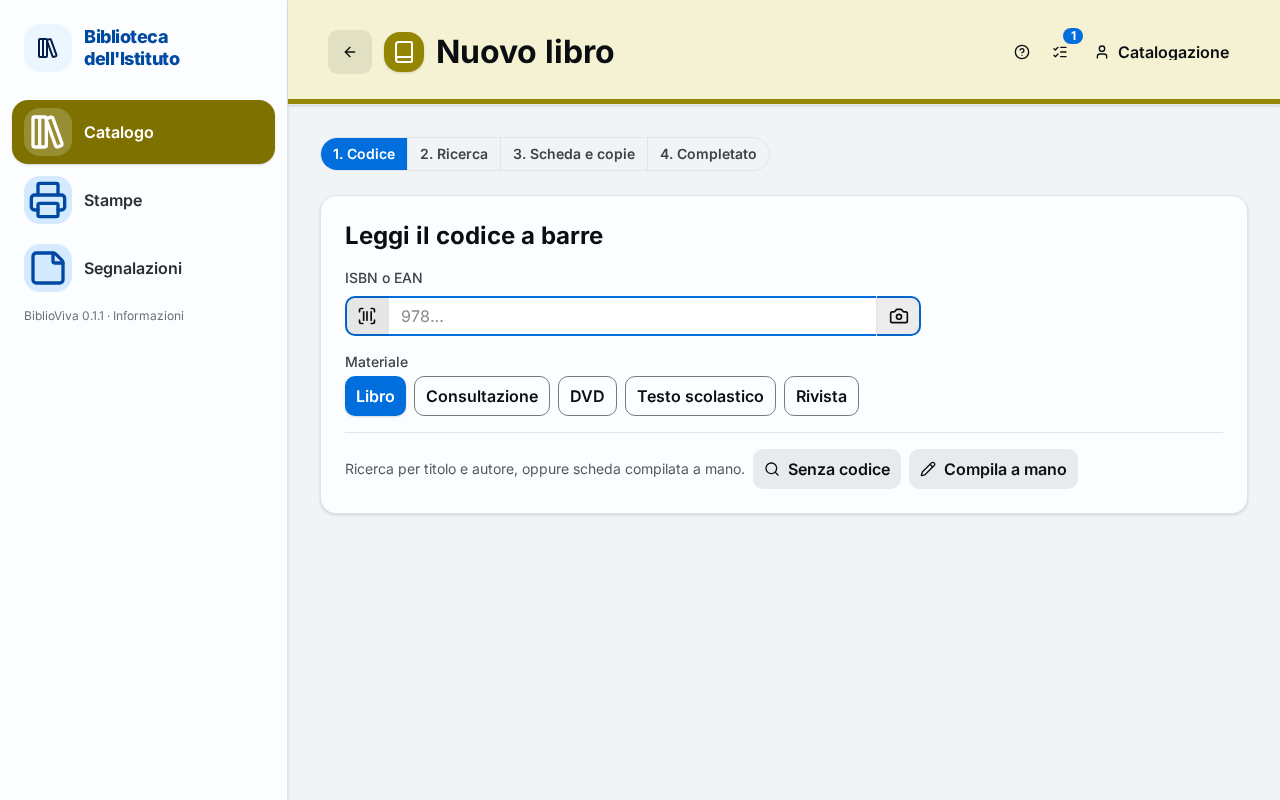
In the figure:
- The step indicator: Steps of the page.
- The ISBN or EAN field, where the code is read with the scanner: Code step.
- The choice of Material: Code step.
- The No code button: Search by title and author.
- The Fill in by hand button: Record filled in by hand.
Steps of the page
The normal path, with the ISBN, is: read the code, check the proposed record (which opens by itself), save. For a book already in the catalogue the path stops at the step This ISBN is already in the catalogue and adds copies. For a book without a code, go through the search by title and author or the form filled in by hand.
The Add another button of the confirmation returns to the first step for the next book, without leaving the page. So do Scan another code (in the steps This ISBN is already in the catalogue and Record and copies) and New code (in the step Lookup).
Code step
The ISBN or EAN field already has the cursor. Read with the barcode scanner the barcode printed on the back of the book; the scanner sends the code followed by Enter and the search starts by itself. Alternatively, type the code by hand and press Enter.
The camera button next to the field is optional: it reads the code from the image and works only with a secure connection (https), that is with Tailscale. With the scanner it is not needed.
Below, the Material choice says what is being catalogued (book, DVD…): the copies are created of that type. The choice stays valid as long as the page stays open, also for the following books.
Under a separator line are two ways for a book without an ISBN, with the note "Search by title and author, or fill in the record by hand.": No code and Fill in by hand.
Code step messages
The code read is neither an ISBN nor an EAN
"The code read is neither an ISBN nor an EAN: check the digits or choose “No code”." The code does not have the form of an ISBN or an EAN. Read the code again or use No code.
EAN read, not an ISBN
"EAN N read: it is not an ISBN, so the record must be filled in by hand." This happens with DVDs and the other materials that are not books: the page moves to the form, with the EAN already written, without searching online.
Check the digits again
The warnings "The ISBN has a wrong check digit: check the digits." and "Code not recognised: make sure the scanner reads Code 39 and Code 128." appear under the field when the reading is wrong. Repeat the reading.
Not an ISBN, with the camera
"Not an ISBN: frame the book's barcode." With the camera the page accepts only ISBNs.
Book already in the catalogue
If the ISBN is already in the catalogue, the page does not create a duplicate record. It shows the title, the author, the publisher, the year and "N copies" under This ISBN is already in the catalogue. The choices are:
- Add copy: adds to the book the Number of copies written in the field (at least one), of the material chosen in the first step, with the proposed call number. The page moves to the confirmation Record saved ("N copies added to “title”").
- Open the record: opens the Book record.
- Scan another code: returns to the first step.
Search by title and author
The No code button opens a page titled Search by title and author with the fields Title and Author. Pressing Search starts the online search. Fill in by hand opens the empty form and Back returns to the first step. If both fields are empty, the page warns: "Type at least the title or the author."
Lookup step
After an ISBN code or a search by title, BiblioViva queries the bibliographic services configured by the library (normally OPAC SBN). The page writes "Searching …".
A row of marks reports the outcome of each service: "name of the service: N records", with "from cache" if the answer had already been downloaded, or "Error" in red. Below, a red box explains each error (the service does not answer, is not reachable, is not configured…) and that the data can be written by hand.
With the ISBN the most complete record opens by itself in the next step. With the search by title the page shows the list Records found, the most complete first with the mark Most complete. Each record gives title, author, series, place, publisher, year, physical description, ISBN and the service it comes from. The Use this record button chooses that record and opens the form.
Under the list are the buttons:
- Enter by hand: opens the empty form;
- Search by title: repeats the search by title and author (it appears after a search by ISBN);
- Retry: repeats the search (it appears if a service gave an error);
- New code: returns to the first step.
If no service found anything, the page writes "No record found. The record can be filled in by hand."
Record and copies step
The page titled Check the record and add the copies shows the form of the book, already filled in with the data found, and the copies to create. The record must always be checked before saving: above the form a note says "Record from …: check the data before saving." and, if the Dewey number suggested a non-fiction subject, "Subject proposed from Dewey number N."
At the top right the Scan another code button abandons the record and starts again from zero: use it when the code read was wrong.
Most complete record
If the services found several records, the page opens the most complete and says so: "The most complete of the N records found. Check the year and the description against the copy." The button "Other records (N)" returns to the list to choose another.
Cover
If covers are active, above the form the Cover box shows the image found online while the record is open ("Found on …: it is saved with the record. If it is wrong, photograph the book's own."). The buttons are Photograph the cover (or Replace with a photo) and Remove. The cover is saved together with the record. The administrator can switch covers off; in that case the box does not appear.
Book data
The form has the sections Record, Publication, Classification and More, with the same fields and the same rules as the form Edit record. Author and publisher are mandatory: if the book does not give them, use the special values of the buttons under the field.
Copies section
The Copies section creates the copies of the book in the same save:
- Number of copies: how many new copies, normally 1;
- Material: already set from the first step;
- Level of the copies, if the library records the level on the copies;
- Call number: it is proposed from the classification and updates until a call number is typed in;
- Acquisition date: normally today's date.
The Save record and copies button saves. Cancel returns to the catalogue. If a field is not valid, the message appears under the field; the messages are those described in Form messages. For "1 to 100 copies at a time" the number of copies must be corrected.
From the wish
If the page was opened from the Catalogue it button of the wishlist, at the top a box writes "From the wish: …" and explains "Scan the book's code or search it by title: the wish leaves the list when the record is saved." Title and author are already written in the search and in the form.
Record saved
At the end the page Record saved appears, with the summary "“title” with N copies" (or "N copies added to “title”"), the cover and, under Copy barcodes, the barcodes of the new copies. The choices are:
- Add another: the main button, for the next book;
- Print labels: opens the Print labels window for the copies just created;
- Add to the labels list: puts the copies in a print list, to print later (see Printing);
- Open the record: opens the Book record.
If the book had been chosen for a wish, the wish leaves the list and a message confirms it ("Wish removed from the list"). If the cover could not be saved, a red warning says so ("The cover was not saved: add it from the book's record.").
Record filled in by hand
When the book has no ISBN, or the online search finds nothing, the Fill in by hand button opens the same form as the Record and copies step, empty, with the note "Record filled in by hand." The ISBN or the title already written stay in the form.