
Leave a note for colleagues
This page explains how to write a note, a coloured slip that every account reads, to alert colleagues or the administrator to a problem or a useful piece of information: the barcode scanner that does not read, a book to check, a change of hours. It is for anyone who works with BiblioViva, with any account.
- Time: about a minute.
- Account: any.
- Requirements: the text of the notice, at most 500 characters.
Procedure
-
Open Notes from the side menu (on the phone from More). The page opens with the open notes as coloured slips; the most important ones, pinned, are at the top.
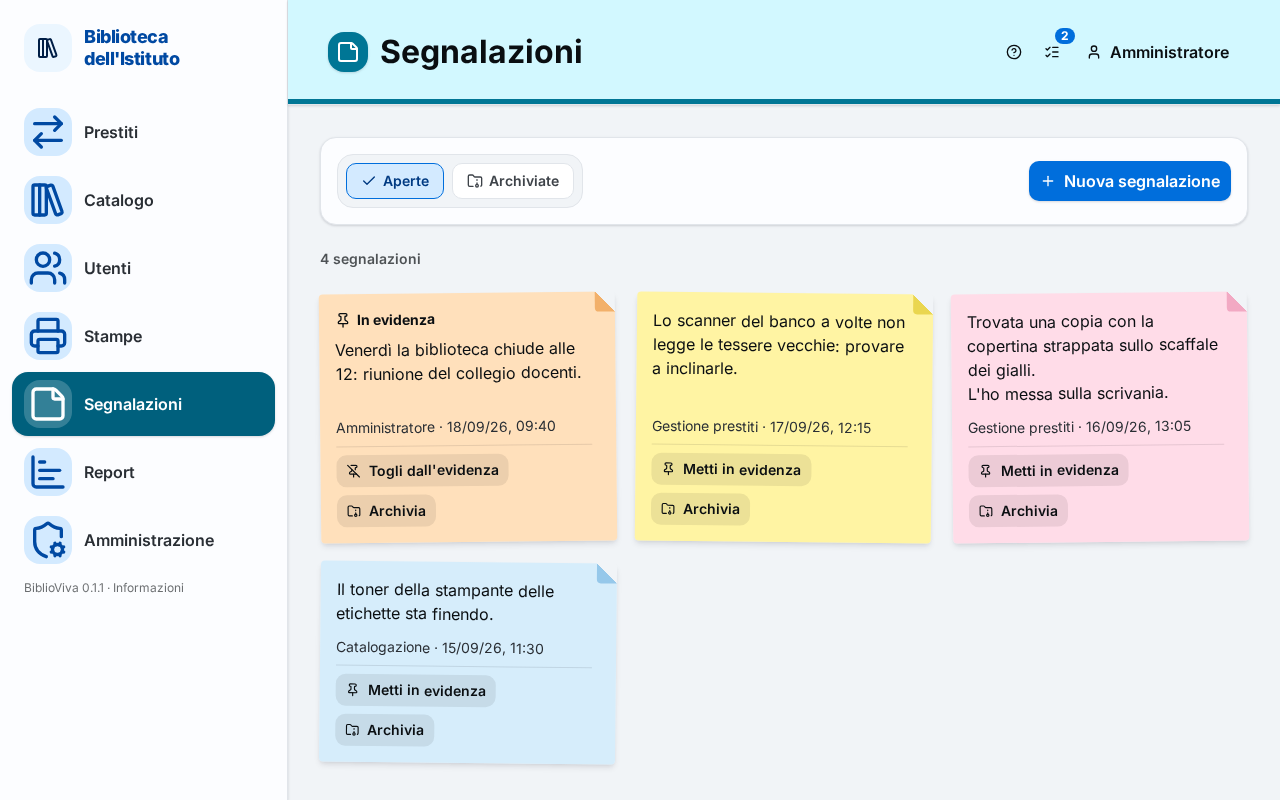
Figure 1. The Notes page with some coloured slips -
Press New note. A window opens.
-
Write the notice in the Text field. Under the field a counter says how many characters have been used.
-
Choose a Colour: Yellow, Pink, Green, Light blue or Orange. The colour only serves to recognise the slip at a glance.
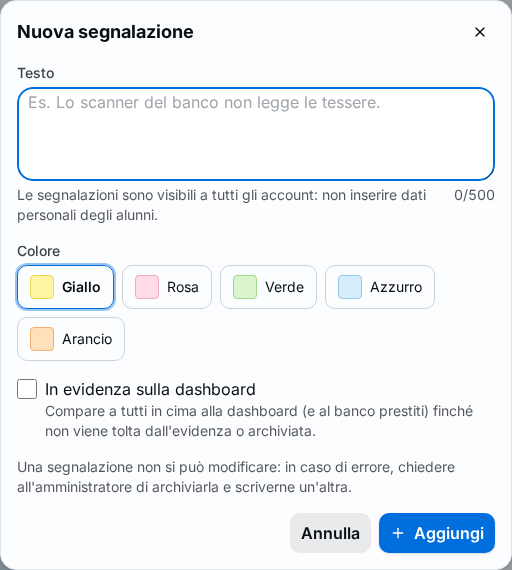
Figure 2. The New note window -
Press Add. A message says Note added and the slip appears among the open notes, with the name of the account that wrote it and the date.
Important. Notes are visible to all accounts: do not write personal data of pupils.
Note. The slip carries the name of the account (for example "Loan management"), not that of the person: to be contacted again, sign the notice in the text.
Result
The note stays among the open notes until the administrator archives it. If the administrator pins it, it appears to everyone at the top of the dashboard; for the "Loan management" account, which opens directly on the circulation desk, it appears at the top of the Loans page.
Everyone reads the notes; only the "Administration" account pins them with Pin to the dashboard (and unpins them with Unpin), archives them with Archive, restores them with Restore or deletes them with Delete. Archived notes are in the Archived tab.
Possible problems
The text is too long
The window shows the counter in red and says that the text exceeds 500 characters. Shorten the notice or write two.
There is a mistake in the text
A note cannot be edited. Ask the administrator to archive it and write another.
The slip is long and cannot be read in full
Long slips are shortened: press Show all to read them in full, Show less to fold them again.
The note is no longer valid
Ask the administrator to archive it. An archived slip can still be consulted in the Archived tab until the administrator deletes it for good.
An urgent problem
A note does not alert anyone: colleagues read it the next time they open the page or the dashboard (if it is pinned). For an urgent problem also talk to the administrator in person.